

HOW TO WRITE IN GOOGLE DOCS BY SPEAKING?
The site already has a tutorial showing how to write in Word by speaking, and now you’ll learn how to do it with Google Docs, which is free and works right in the browser.
Voice typing recognizes your language with good accuracy and is great for speeding up your writing: you speak, Docs types.
How to turn on voice typing in Google Docs
Google Docs voice typing works in the Google Chrome browser on a computer. On your phone, use your keyboard's microphone.
- Open a blank document at docs.google.com.
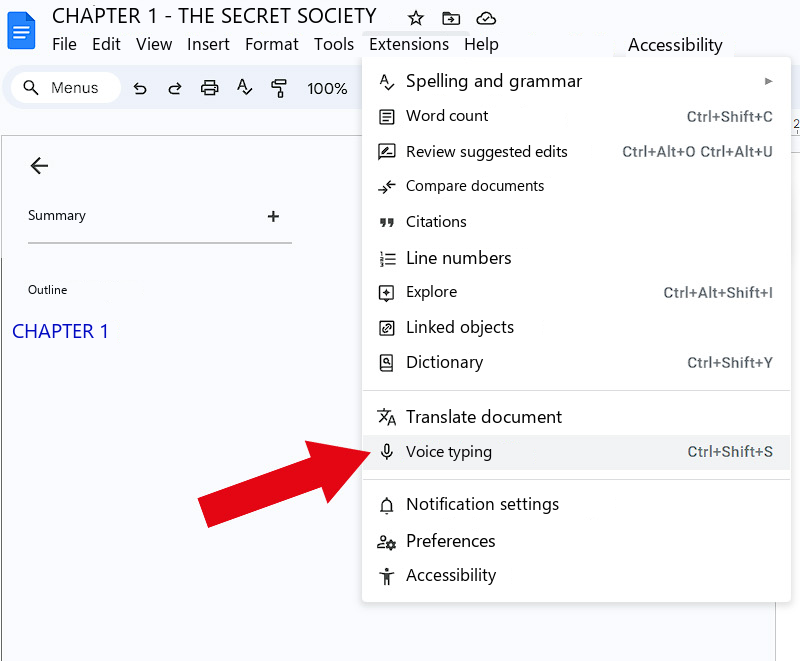
- Go to Tools > Voice typing (shortcut Ctrl + Shift + S).
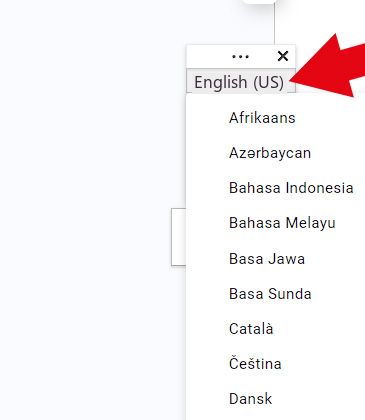
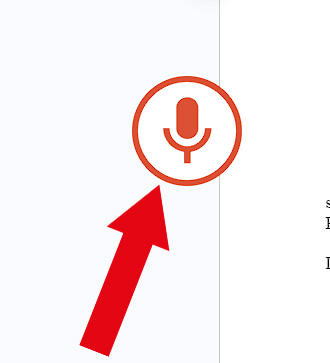
- In the small window that opens, choose the language (English, in your variant) and click the microphone.
- Allow microphone access if Chrome asks, and start speaking.

The microphone turns red while it’s listening. To stop, click it again.
Voice commands for punctuation
There are commands to add punctuation, start a new line and more. You can see them all by clicking the [?] icon in the voice typing window. The main ones in English:
| You say | Docs types |
|---|---|
| “comma” | , |
| “period” | . |
| “question mark” | ? |
| “exclamation point” | ! |
| “new line” | line break |
| “new paragraph” | new paragraph |

Use dictation to get the story down fast and leave the adjustments for the revision. Planning the chapter beforehand helps you speak without getting stuck.
Frequently asked questions
Why doesn't voice typing show up?
It only shows up in Google Chrome, on a computer. In other browsers the option is unavailable.
Is Google Docs voice typing free?
Yes, all you need is a Google account.
Can I dictate on my phone?
Yes: in the Google Docs app, use your phone keyboard’s microphone.
Tools and resources
Do you prefer dictating in Word or in Google Docs? Tell me in the comments.