
Writing your book just by speaking: the power of voice typing
Writing is a very old craft. Not so long ago, many authors still used typewriters. With the digital age, we started creating stories in word processors, but always with the keyboard as the main tool. Today, with speech recognition and artificial intelligence, you can do something amazing: write your book just by speaking.
Here you’ll see how to use this technology in your favor to break the inertia and double your productivity. To show it in practice, I’ll use Writing Focus, the editor I developed inside One Tools Pro.
1. The typing barrier and creative block
Our minds often come up with frantic action scenes or intense dialogue, but our fingers can’t keep up with the speed of thought. That leads to frustration, lost ideas and, many times, the dreaded creative block.
Voice typing (speech-to-text) removes that bottleneck. When you speak, the grip of perfectionism loosens, and creativity flows in a much freer, more natural way.
2. How to turn on voice typing in practice
In Writing Focus, dictation works right inside the editor, with no plugin or extension to install. Just open the Voice Dictation (Speech-to-Text) panel, under Typing Intelligence, choose the Dictation Language and turn on the microphone with the button on the toolbar. It works best in Google Chrome.
With the right language selected (English (United States), for example), everything you say goes onto the page in real time. It’s ideal for writing faster and getting the first draft out of your head, leaving the fine-tuning for revision.
A headset with a mic or a simple desk microphone makes far fewer mistakes than a laptop's built-in mic, especially in a noisy room.
3. Voice commands: formatting without touching the keyboard
The biggest problem with ordinary dictation software is that it produces one long block of text, with no punctuation and no formatting, which doubles your work later. With that in mind, I built a full list of voice commands into the tool.
You don’t have to stop talking or reach for the mouse. Just say the commands in the middle of the sentence, and the tool applies the punctuation and formatting on the spot. Some of the ones I use most:
| Say | What happens |
|---|---|
| new paragraph, new line | Starts a new paragraph |
| comma, full stop (or period), semicolon, colon | , . ; : |
| question mark, exclamation mark, ellipsis | ? ! ... |
| em dash | — (great for interruptions and asides) |
| open quotes / close quotes, open parenthesis / close parenthesis | " " and ( ) |
| bold, italic, underline, strikethrough | Turns the formatting on and off |
| select paragraph, select all, cancel selection (or deselect) | Selects text or clears the selection |
| delete, erase | Deletes the selected text or the last character |
| undo, redo | Undoes or redoes the last action |
| align center, justify | Aligns the text |
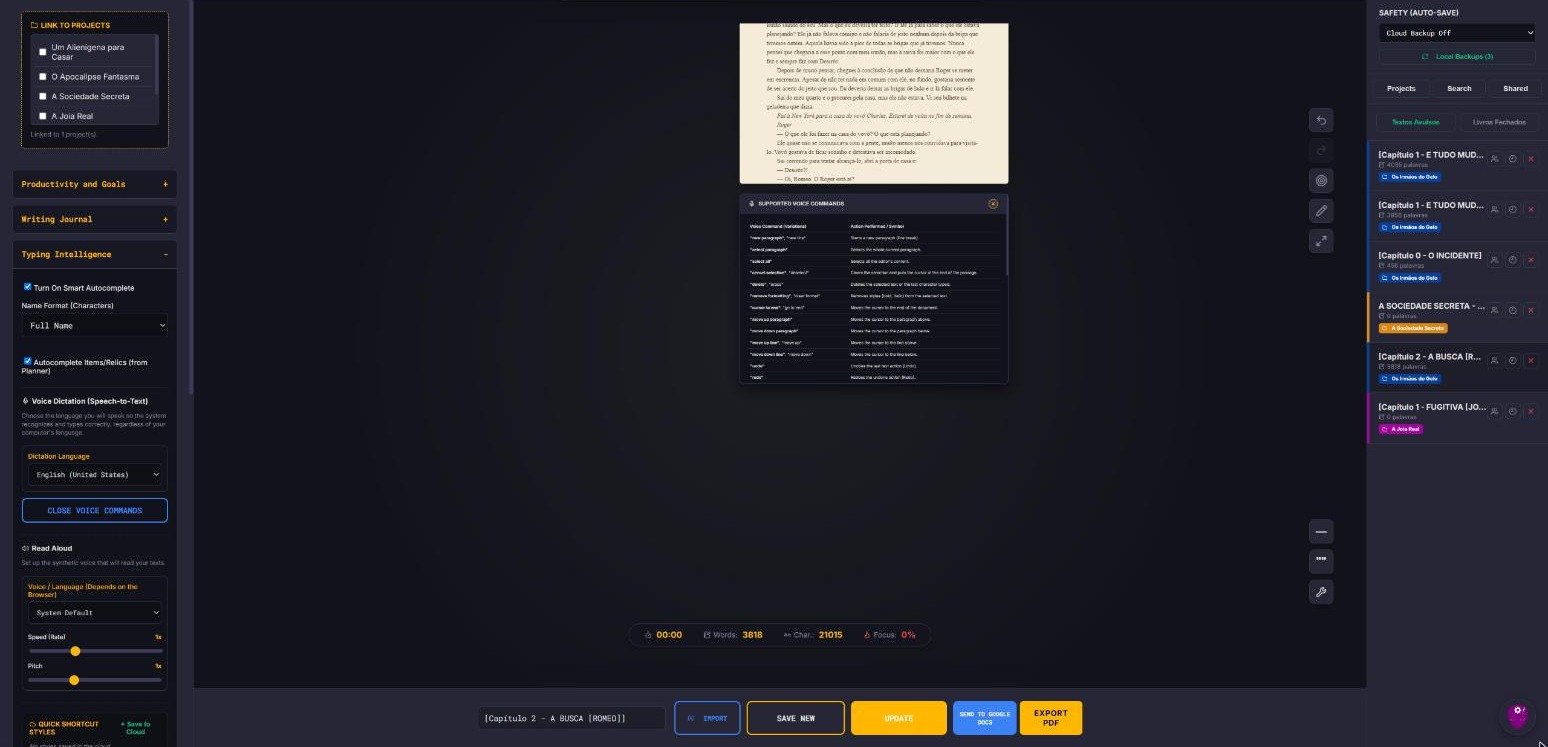
The full list is under the Voice Commands button, right inside the panel.
4. After dictation: staying true to your universe
Writing by voice speeds up your output a lot, but it calls for some organization first. Because speech flows fast, it’s easy to drift away from the outline. That’s why I recommend keeping your story plan open on the split screen while you dictate. That way, your characters’ lines keep making sense with your story bible.
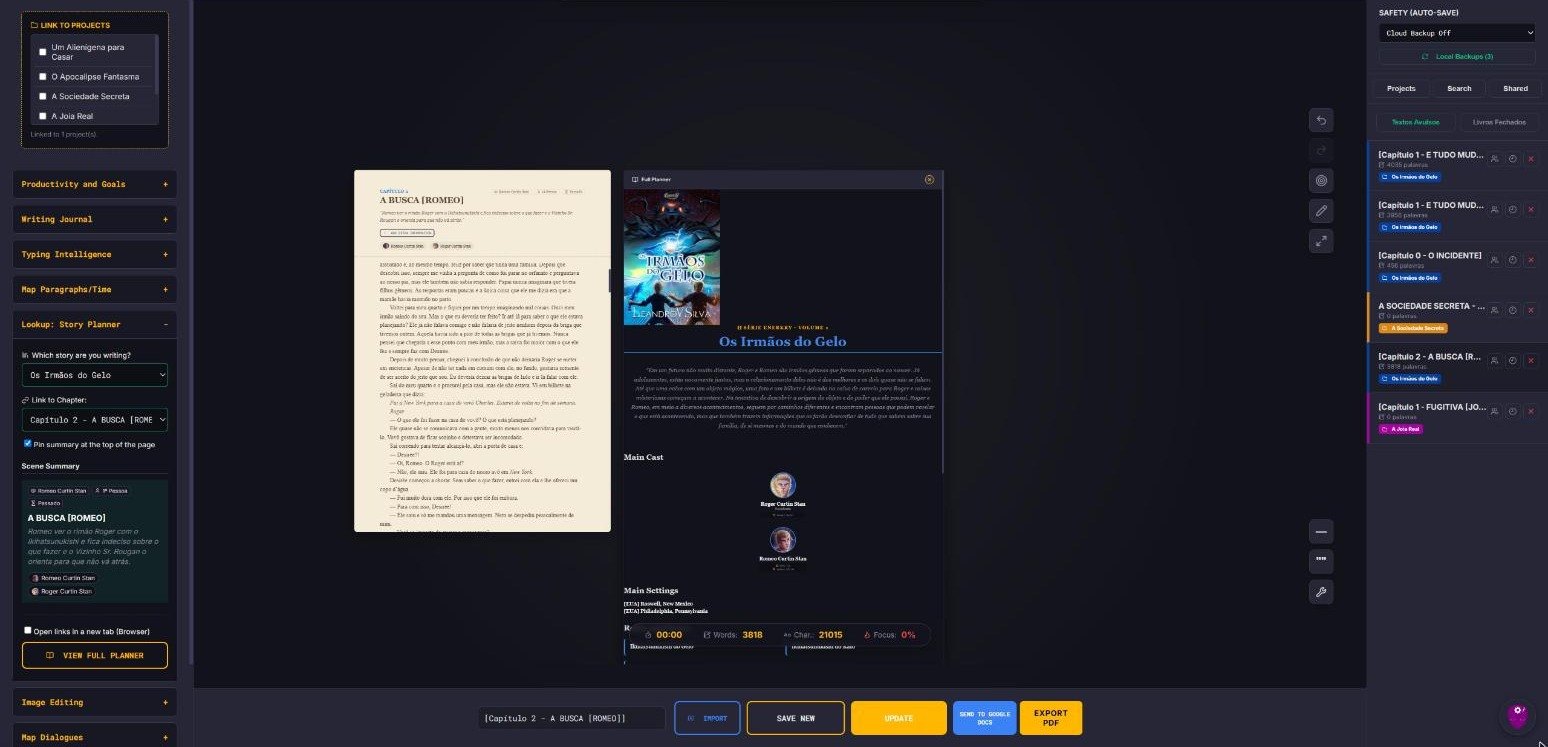
Later, during revision, read the text carefully: speech recognition sometimes swaps similar-sounding words, especially invented names. A tip is to add your cast’s names to the planner, because the editor’s smart autocomplete also fills in those names for you.
Dictation is one piece of the puzzle. Along with goals, a writing journal and the split screen, I show everything in how to stay focused while writing your book.
Frequently asked questions
Does dictation add punctuation on its own?
No. You say the punctuation (“comma”, “full stop”, “em dash”), and the tool inserts the symbol.
Does it work in any browser?
It works best in Google Chrome, which has the most stable speech recognition.
Can I dictate in another language?
Yes. Choose the language in the Dictation Language field, and the system recognizes speech in that language, regardless of your computer’s language.
Tools and resources
About One Tools Pro: most of the platform's features are free, but some features require a subscription to be unlocked. To check, just visit One Tools Pro.
Make the most of this feature to speed up your writing process and bring your stories into the world in a lighter, more productive way. Keep fighting and always moving forward!
Open Writing Focus in One Tools Pro