

HOW TO CONVERT KPF TO EPUB?

You, or the professional you hired, probably formatted your eBook in Kindle Create, and you’d like to reuse the file to publish on other platforms. The problem is that they accept EPUB or other formats, not KPF.
Here I’ll show the solution with Calibre, a free eBook management and conversion program.
Install Calibre and the plugins
If you don’t have Calibre yet, download it from the official website, choose the version for your system and install it. The process is very simple.
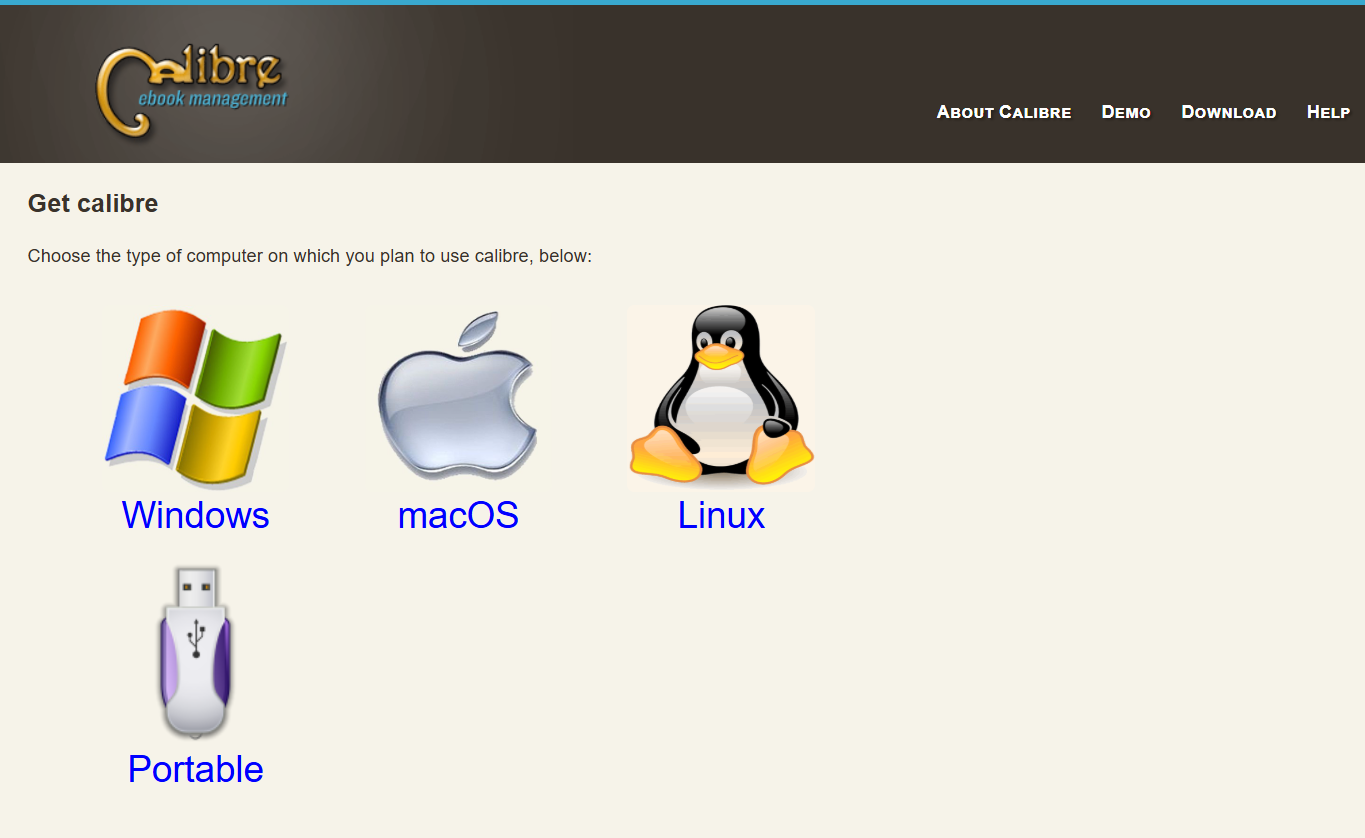
Once it’s installed, you’ll need two plugins. They could well be built in, but they have to be installed separately. Download the two shown in the image below.

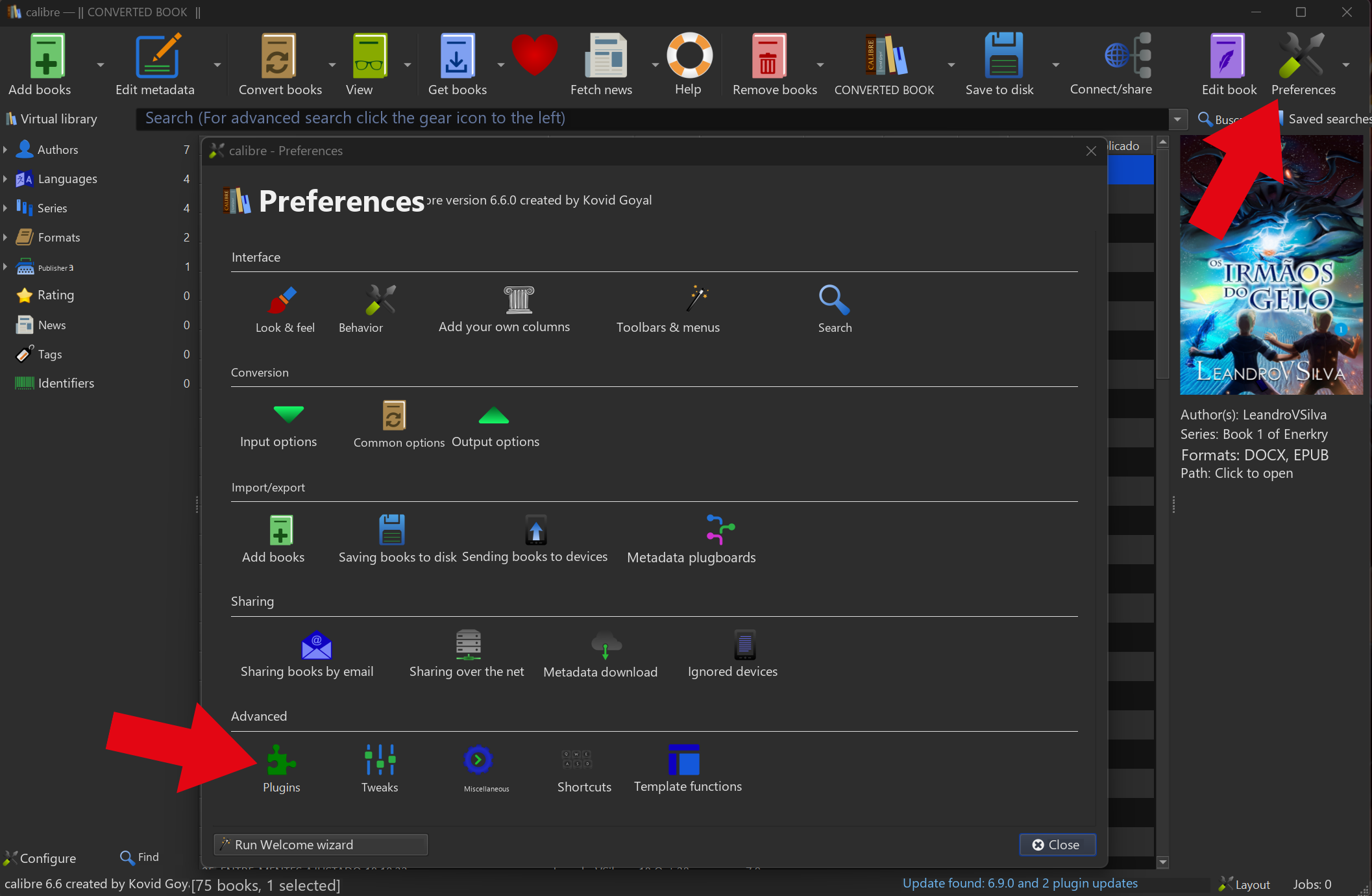
- Open Calibre and go to Preferences > Plugins.
- Click Load plugin from file and choose the plugins in the folder where you downloaded them.
- Restart Calibre when it asks you to.

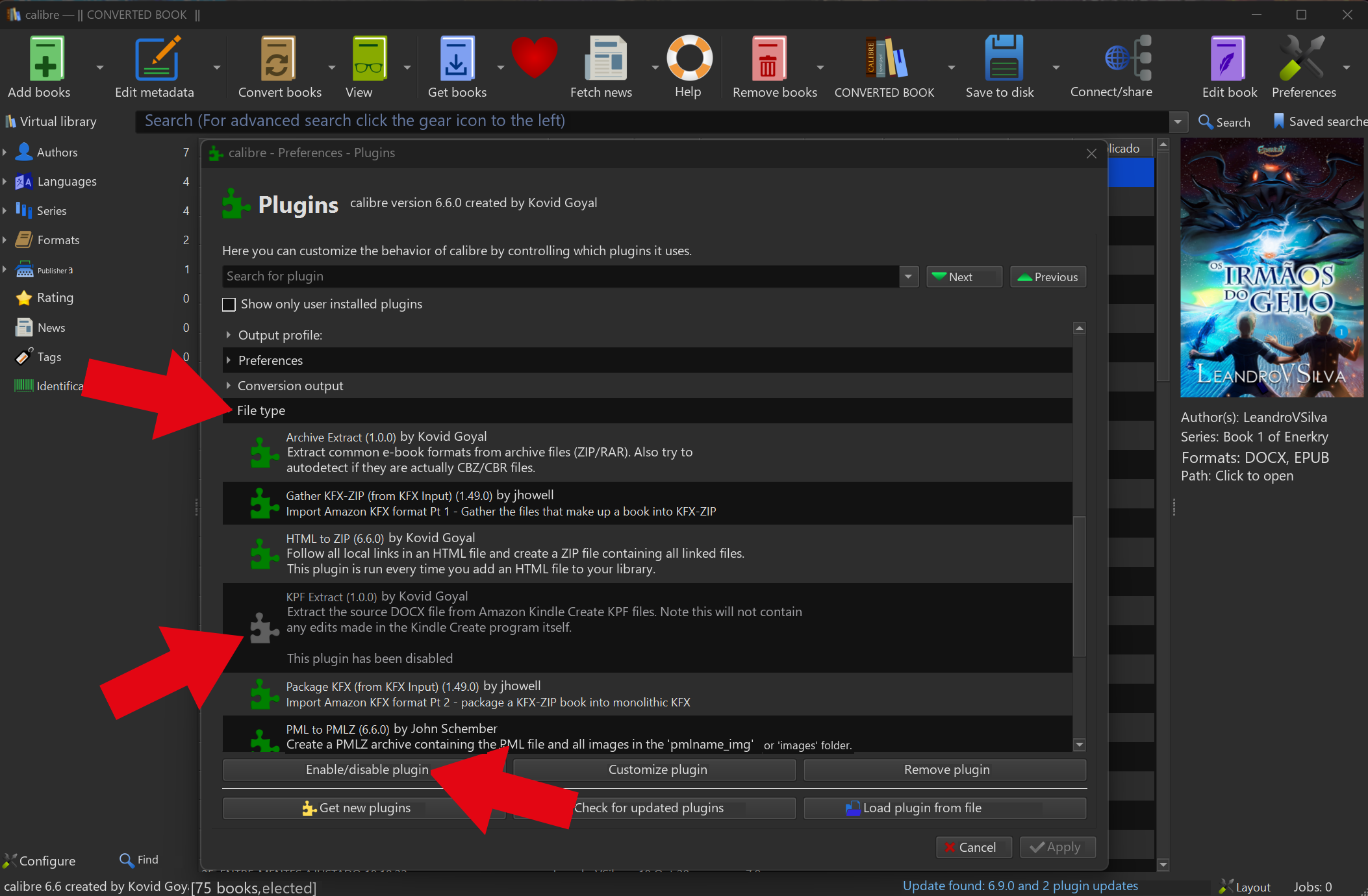
The most important step: disable KPF Extract
With the plugins installed, disable another one that comes enabled by default. Still in Plugins, open File type, select KPF Extract by Kovid Goyal and click Enable/disable plugin. The icon turns gray, showing it’s been disabled.
How to convert KPF to EPUB
Add your BOOK.kpf to Calibre. You’ll know everything worked when the source file is recognized as KPF.
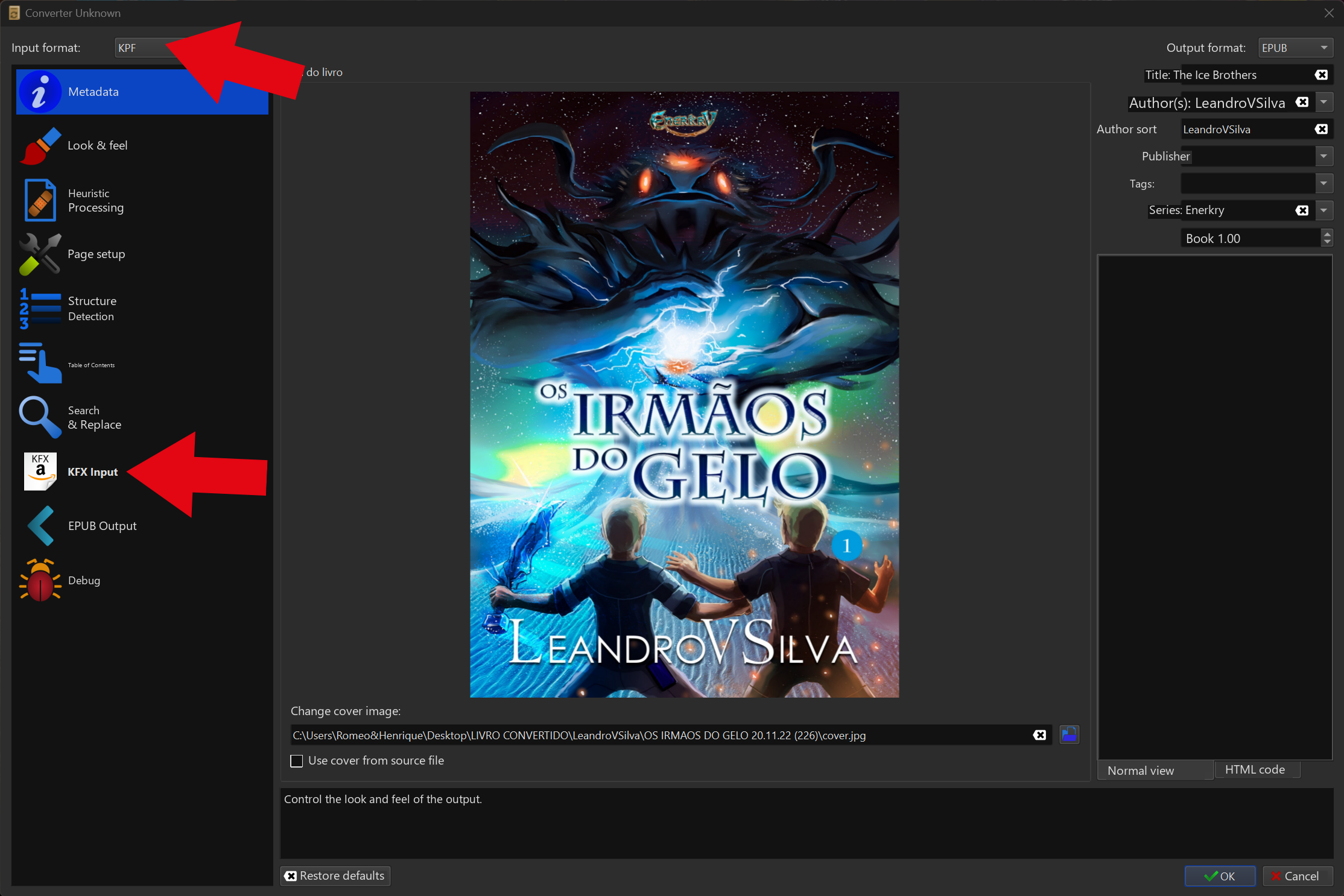
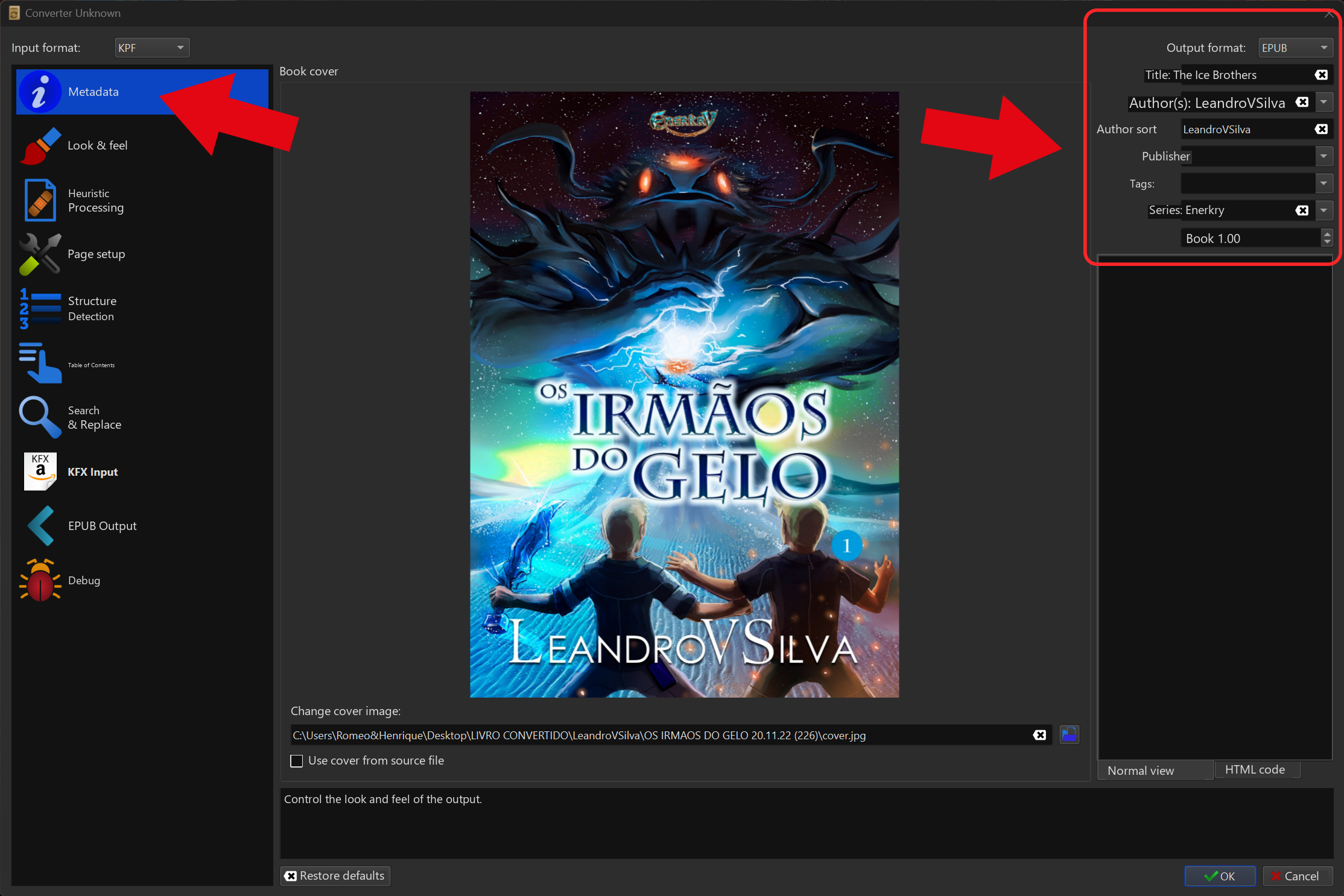
- Click Convert books and choose EPUB as the output format (or any other you need).
- Fill in the Metadata: title, author, cover.
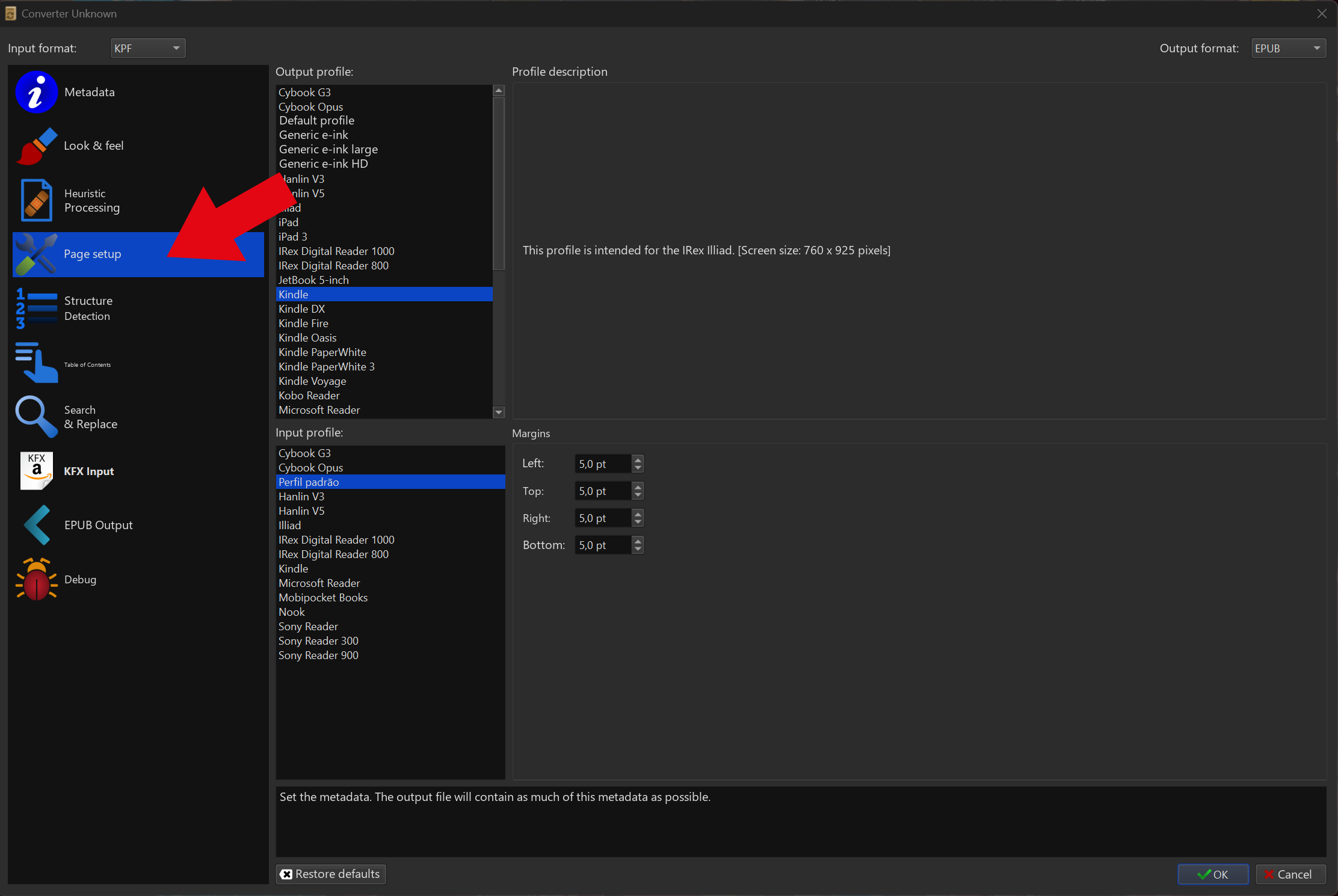
- In Page setup, check the input and output profiles.
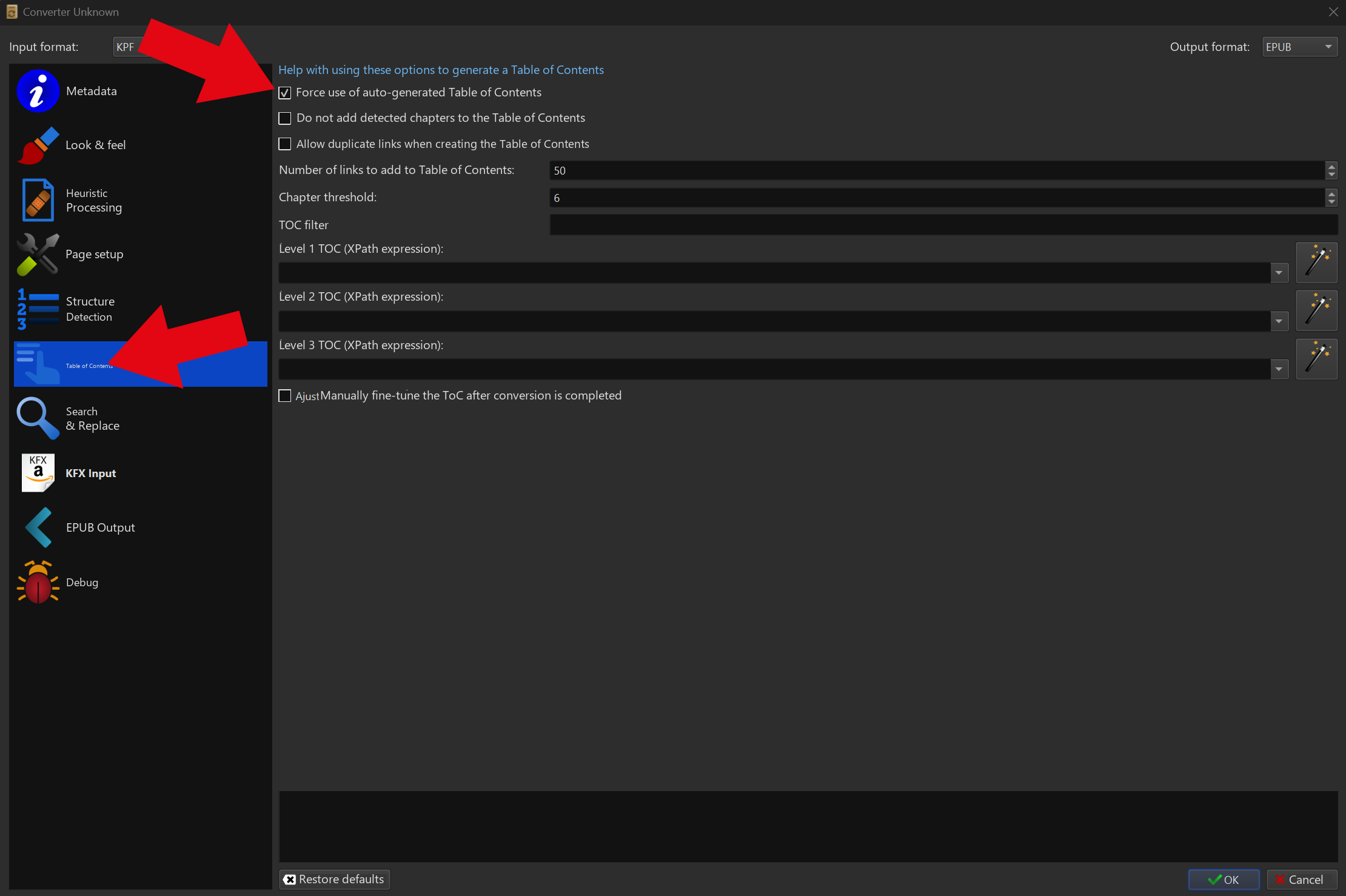
- In Table of Contents, tick Force use of auto-generated Table of Contents.
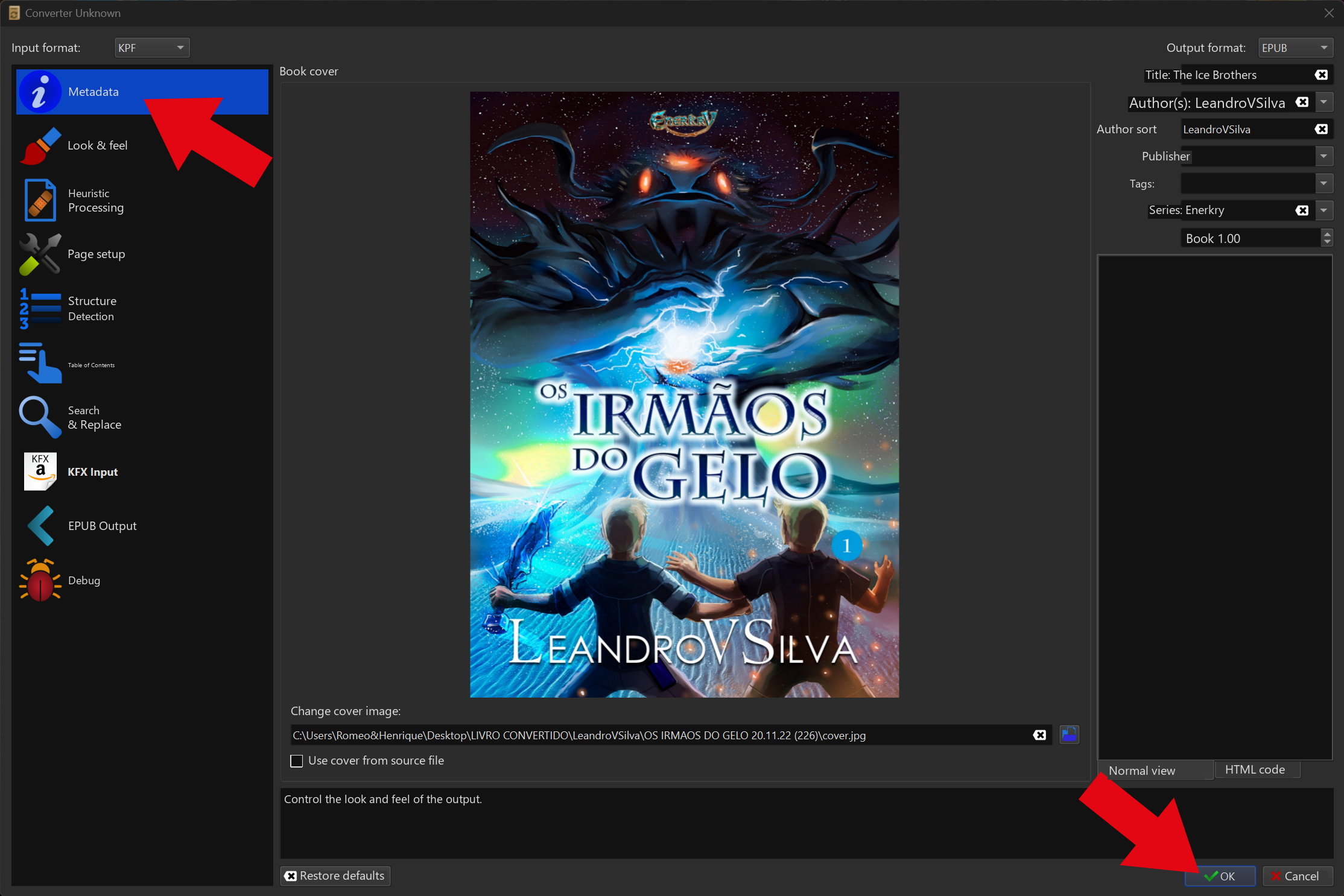
- Go back to Metadata and click OK.
Conversion done. Now go to the folder where the file was converted and conquer the world.
Open the EPUB in a reader (Calibre's own viewer or Kindle Previewer) and check chapters, images and the table of contents before publishing. More complex layouts may need adjustments.
To check how the book looks on Kindle, see what Kindle Previewer is and how to use it.
Frequently asked questions
Does Kindle Create export EPUB?
Kindle Create’s format is KPF, made for KDP. For other stores, converting with Calibre is the most common way.
Is Calibre free?
Yes, it’s free and open source, for Windows, Mac and Linux.
Calibre didn't recognize the KPF. What now?
Check that both plugins are installed and that KPF Extract is disabled. Then restart Calibre and add the book again.
Tools and resources
Did the conversion work? If you get stuck on any step, leave a comment.