

HOW TO CALCULATE THE SPINE WIDTH OF A PRINT BOOK?
The spine of a print book is the area where the cover folds to meet the interior pages. It matters because it keeps the book closed and together, and it’s where the title and the author’s name go on the shelf.
Several factors are needed to calculate the spine, but here I show two online calculators that make the process easier: one for printers (offset and digital print shops) and one for the KDP standard.
Spine width for printers
Open the spine calculator on the One Tools Pro platform, for paperback and hardcover. There you can choose the printer standard (your local print shop) or the standards of KDP and international platforms such as Lulu and IngramSpark.
In the printer standard, choose whether the book is hardcover or not. If it isn’t, say whether it has flaps or no flaps. If it’s hardcover, the flaps option disappears and you enter the board thickness (ask your printer which one they use).
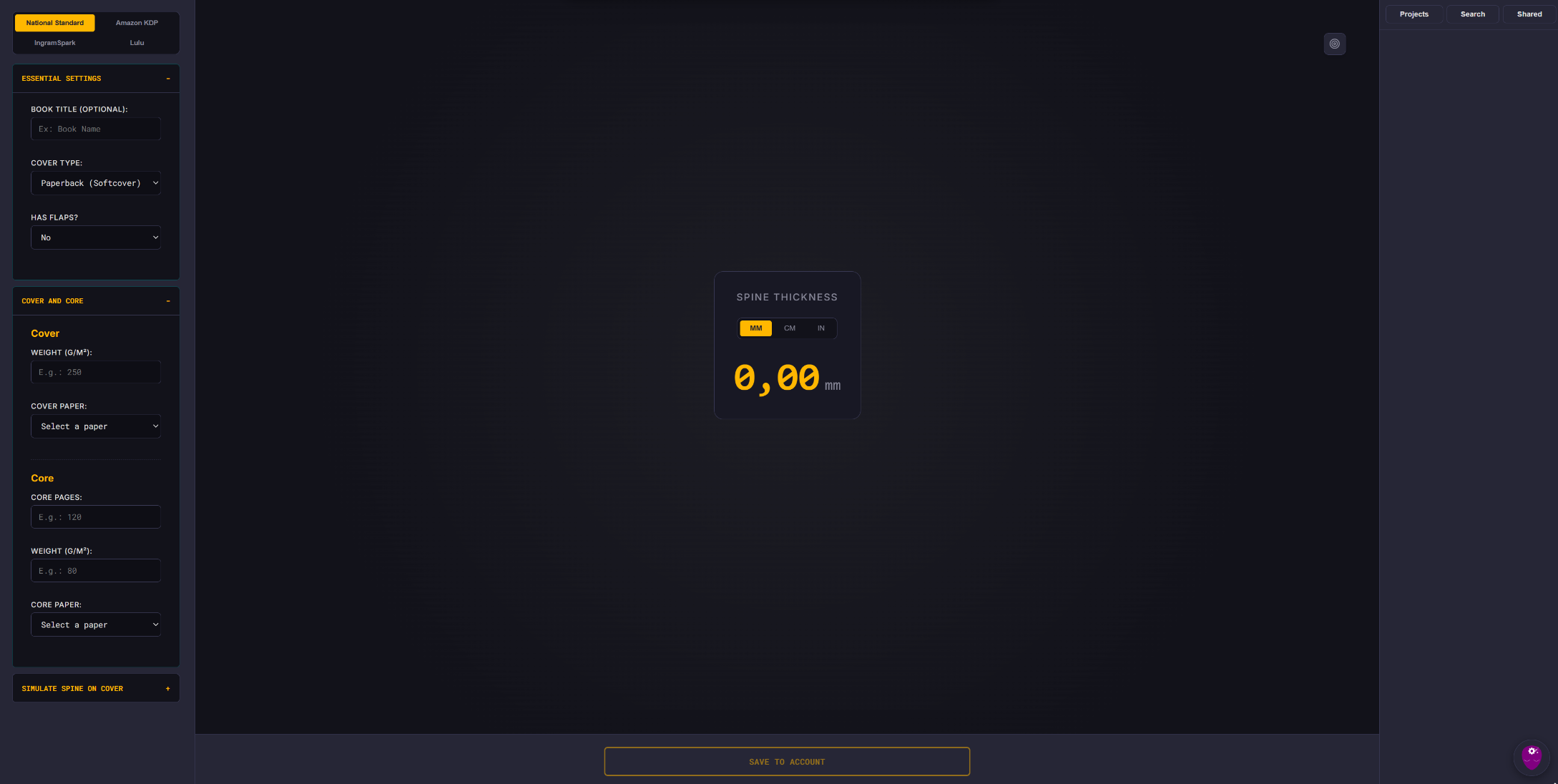
Cover
- Cover page count: generated automatically.
- Paper weight (g/m²): the weight of the cover stock; check the options of your printer or platform.
- Density (kg/m³): calculated automatically from the paper weight.
- Paper type: I usually go with coated board (C1S) or matte coated paper.
Interior
- Interior page count: the number of pages of the book.
- Paper weight (g/m²): the weight of the interior paper. I usually use 80 g/m² cream book paper, but it’s getting quite expensive and hard to find.
- Density: also automatic.
- Paper type: cream book paper and uncoated offset are the most common.
Spine
The value shows up instantly, and you can change the unit of measurement. There’s also a real-size simulation of the spine; in the PRO version you can even choose a cover size and simulate it there. Changed any information? The calculation updates on its own.

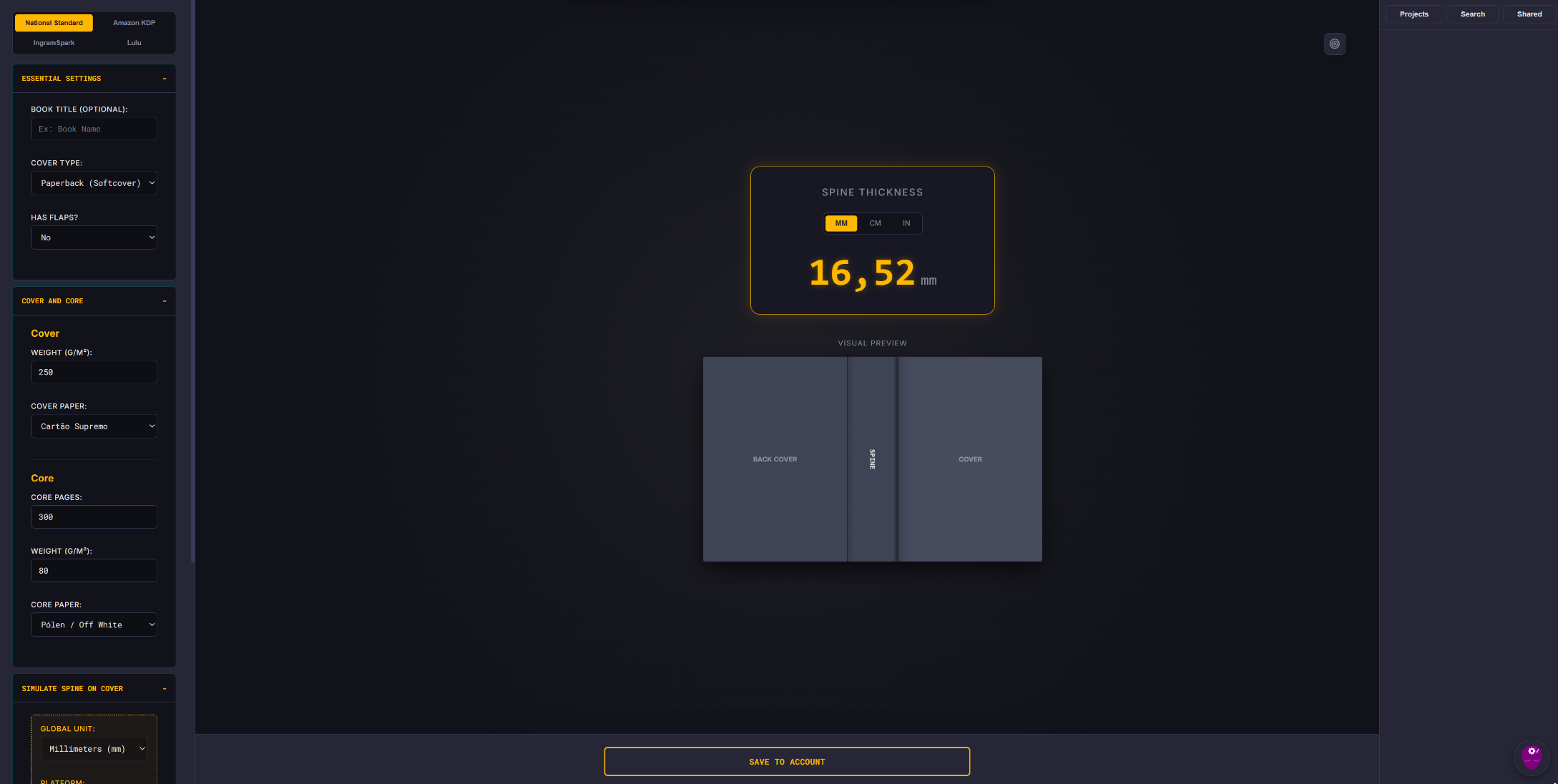
If your printer works with other papers or thicknesses, get in touch and tell me, and I'll add them to the calculator.
The math behind the spine
The calculator does it for you, but it’s good to understand the logic: the thickness of each sheet is the paper weight divided by the density of the paper, and the interior spine is the number of pages divided by 2 (each sheet has two pages) times that thickness. Then the cover is added and, on hardcovers, the board.
I explain all the interior and cover calculations in Understanding the calculations for print book layout.
Spine width in the KDP standard
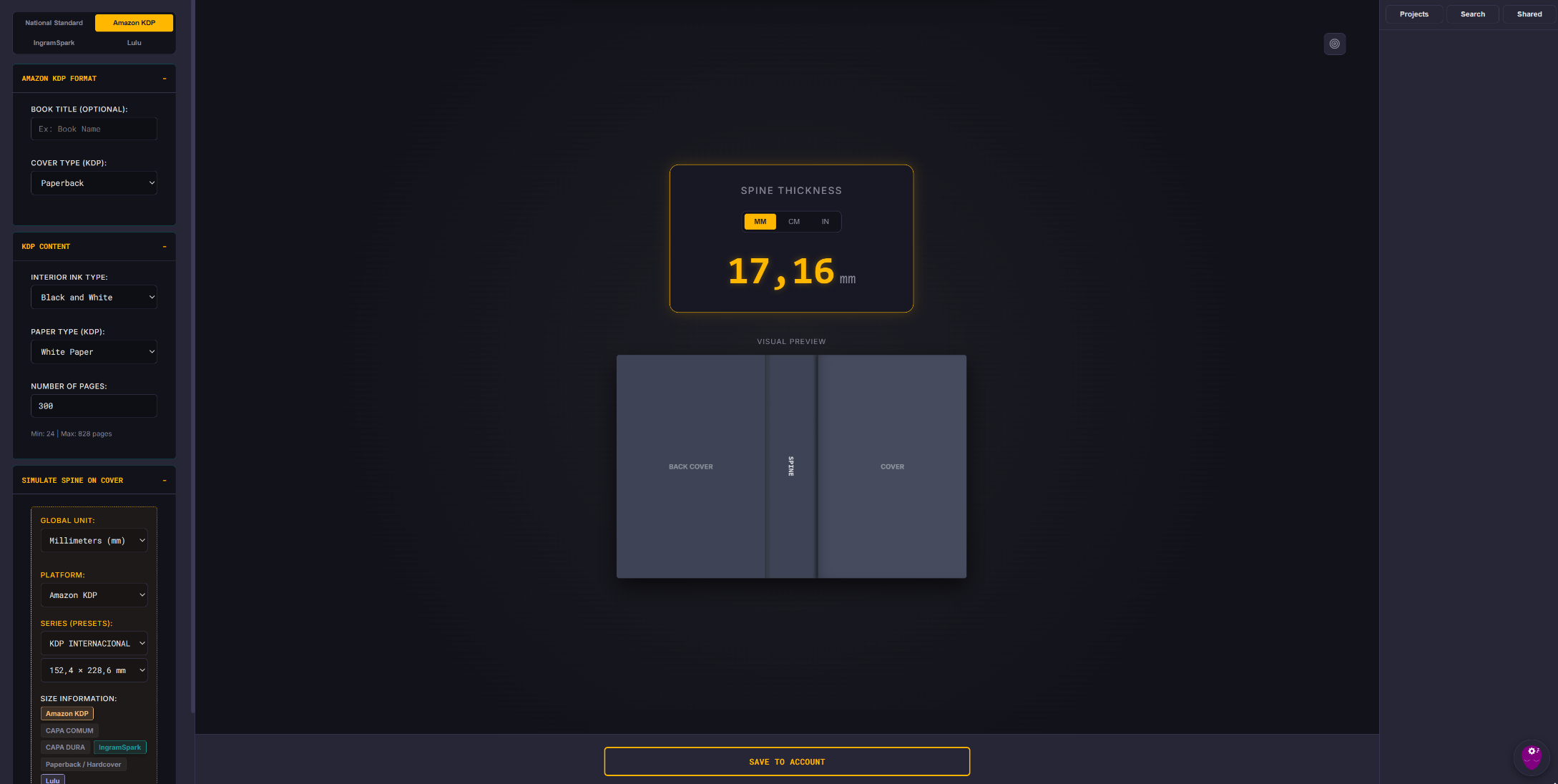
KDP has its own cover calculator, but it’s already built into One Tools Pro: basically you just choose the paper and the number of pages.
With the official KDP calculator
If you prefer the KDP calculator, open it and fill in:
- Binding type: paperback or hardcover.
- Interior type: the print ink (black & white, standard color or premium color).
- Paper type: white, cream or, for paperbacks, groundwood paper.
- Reading direction: left to right, as in English; for manga, right to left.
- Measurement units: inches or millimeters.
- Interior trim size and page count: the size and number of pages of the book. In the example, 6 x 9″ (152.4 x 228.6 mm), the most common trim size, with 300 pages.

Click Calculate dimensions. The calculator gives you every measurement to build the cover (full cover, spine, safe area, bleed and barcode margin), and you can download the template in PDF and PNG with the Download Template button.
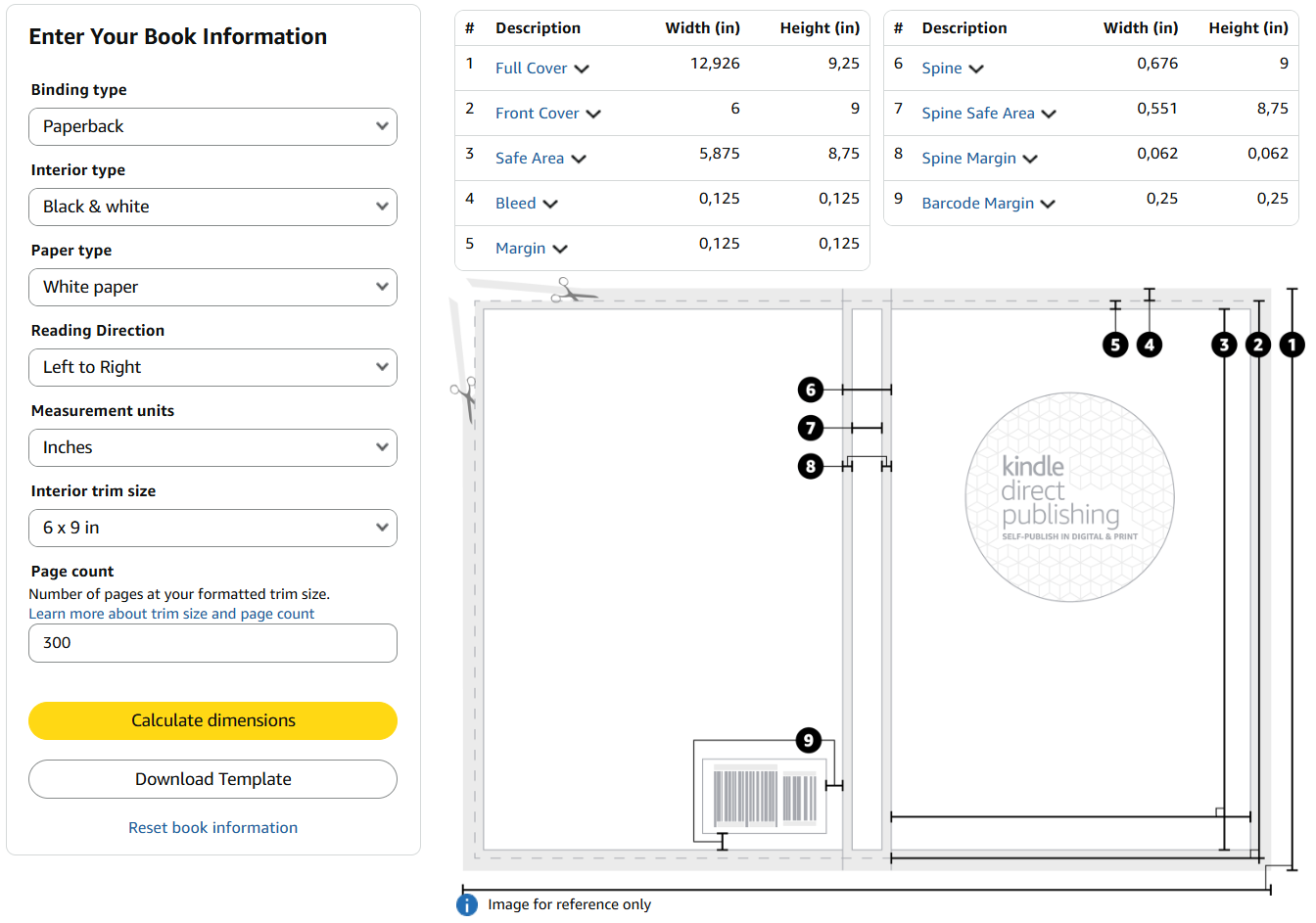
On KDP, each page adds about 0.002252″ (0.0572 mm) on white paper and 0.0025″ (0.0635 mm) on cream paper (black and white). Text on the spine is only allowed on books with more than 79 pages.
Frequently asked questions
What changes the spine width?
The number of pages, the weight and type of the interior paper and, on hardcovers, the board thickness.
Can the printer's spine differ from the calculator?
It can vary a little depending on each printer’s paper. Confirm with them before finalizing the cover.
From how many pages can I put text on the spine?
On KDP, only with more than 79 pages. At printers, it depends on the thickness: very thin spines can’t hold legible text.
Tools and resources
About One Tools Pro: most of the platform's features are free, but some features require a subscription to be unlocked. To check, just visit One Tools Pro.
Does your printer use a paper that isn't in the calculator? Message me and I'll add it.
Message me on WhatsApp