
HOW TO PUBLISH AN EBOOK ON AMAZON?
Amazon is a huge sales platform, especially for books. It has given many authors, above all independent ones, the chance to take their books much further.
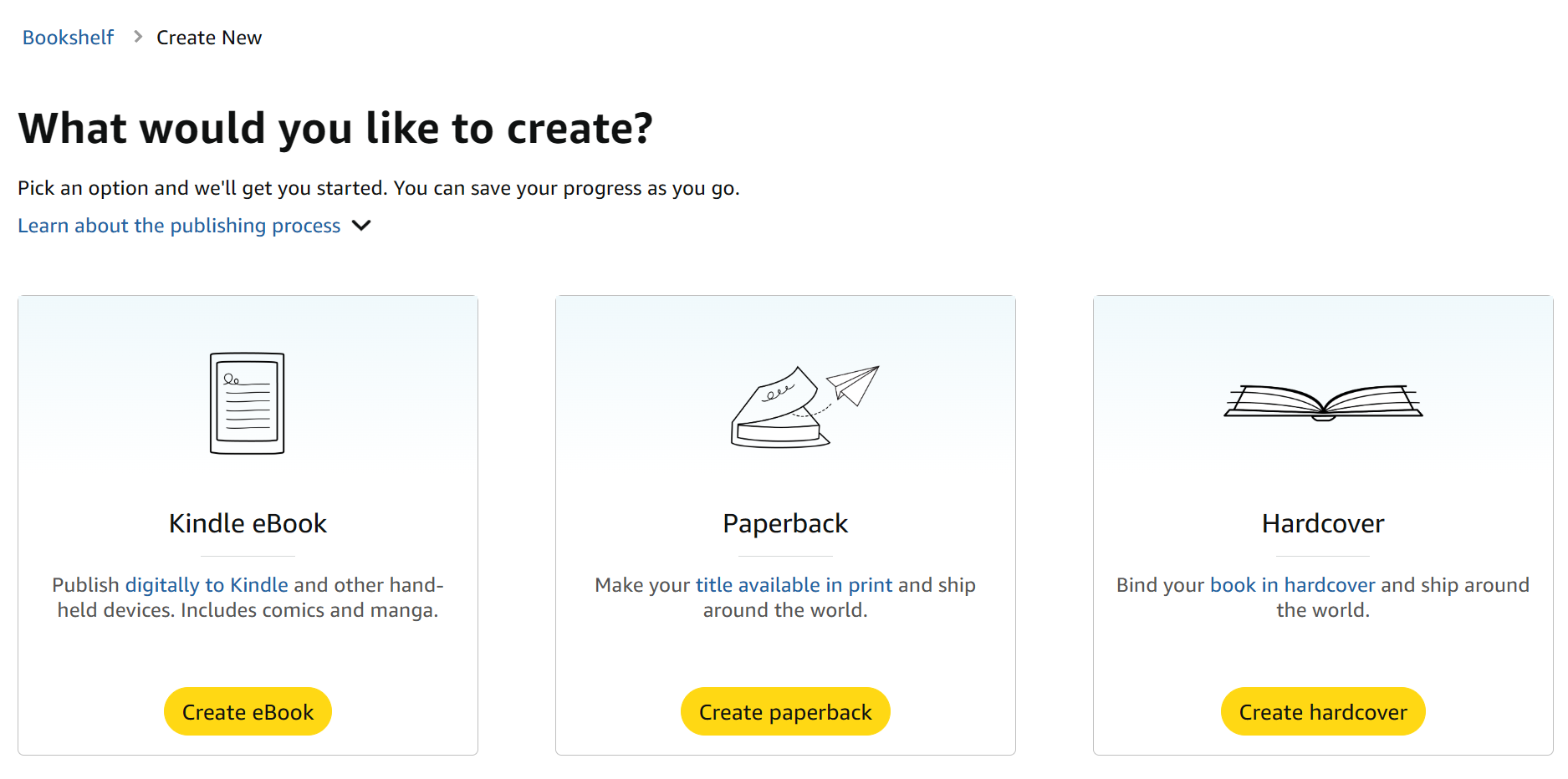
The first step is to have a KDP account set up: see how to create and set up your KDP account. Here we’ll focus only on publishing the eBook. Once everything is set up, click the yellow + Create new title or series button and, under Kindle eBook, click Create eBook.
Step 1: Kindle eBook details

- The book’s language.
- Title and subtitle, if any.
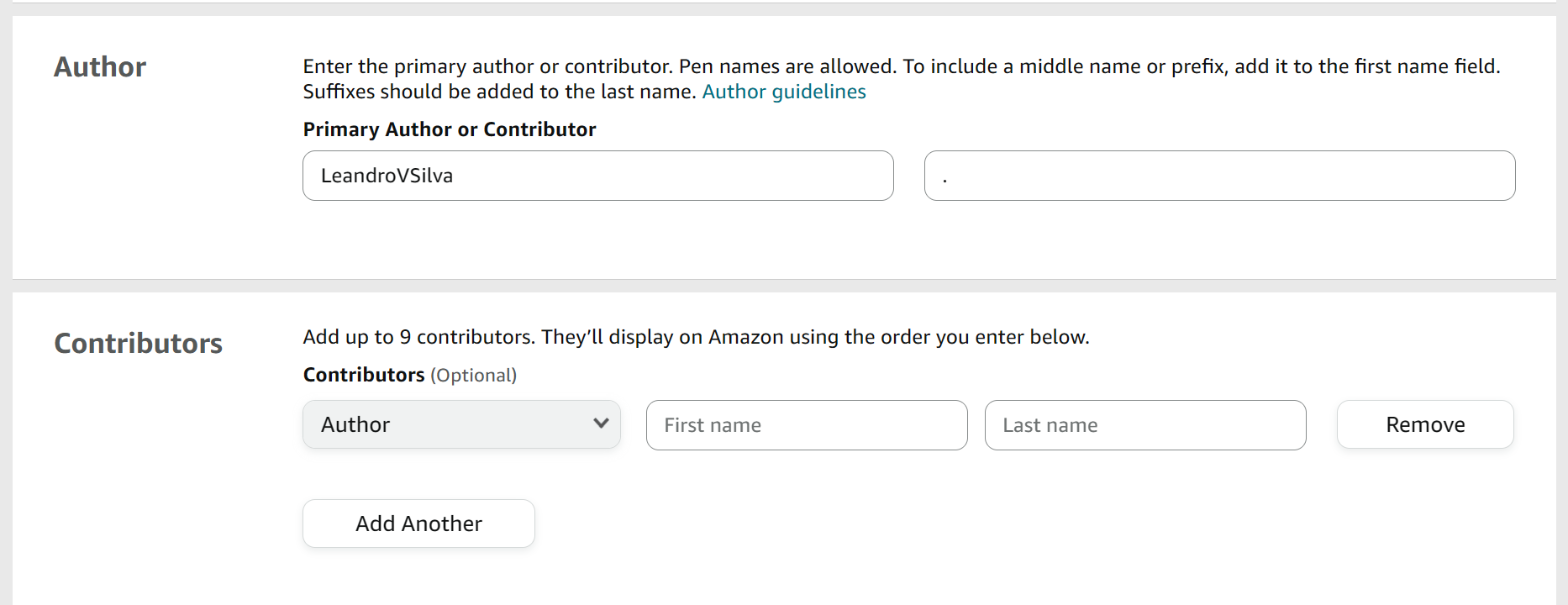
- Author: first and last name. It can be a pen name; readers don’t see the real name on your account.
- Contributors, if any (illustrator, translator and so on).

KDP warns you: the title can't be changed after publication. Type it exactly as it appears on the cover and check the spelling.
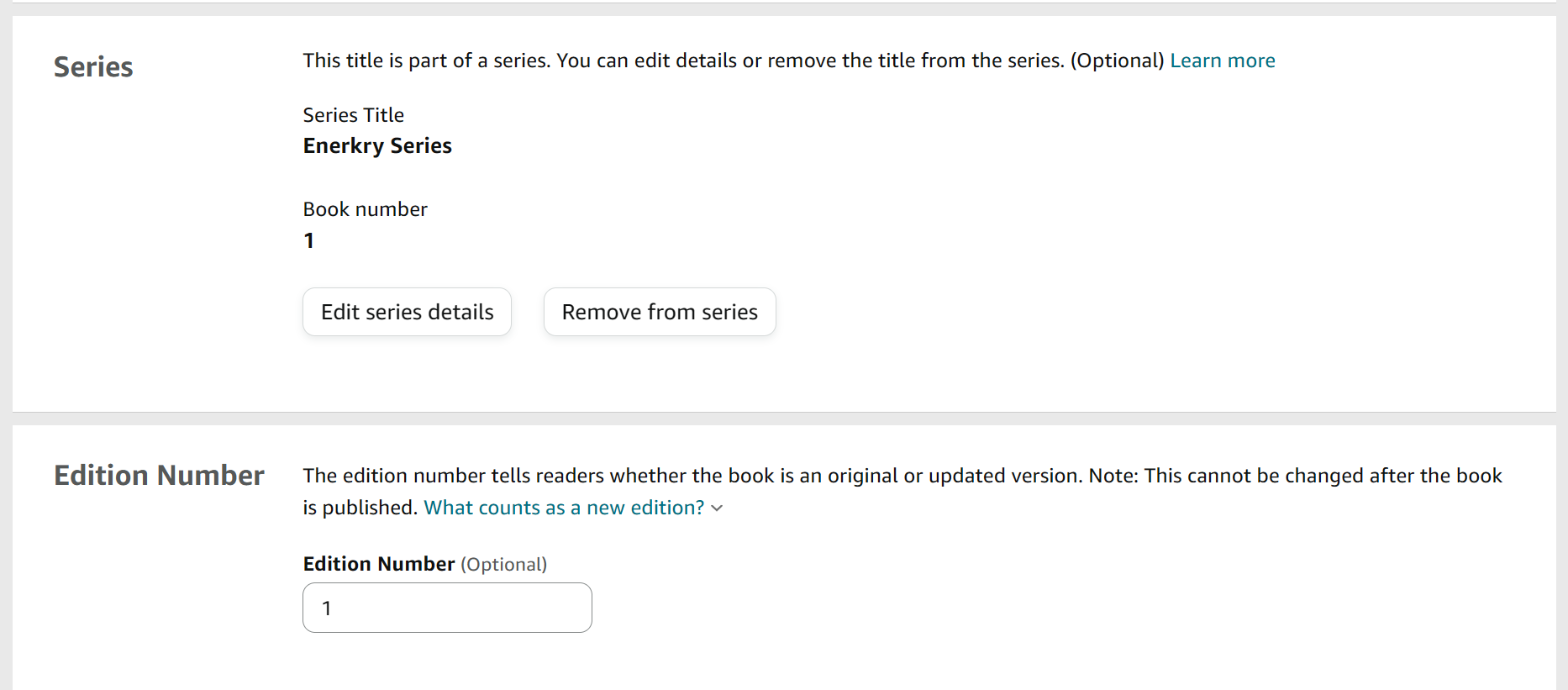
Series and edition number
If the book is part of a series (or will be), click Add to series. The series gets its own page on Amazon with every volume, and the book’s other formats (paperback, hardcover) join it automatically. You can also do this later from your Bookshelf: see how to create and set up a series on KDP. If it’s a standalone book, skip this.
The edition number is optional and tells readers whether it’s the original or an updated version. Note: it can’t be changed after publication either.
Description
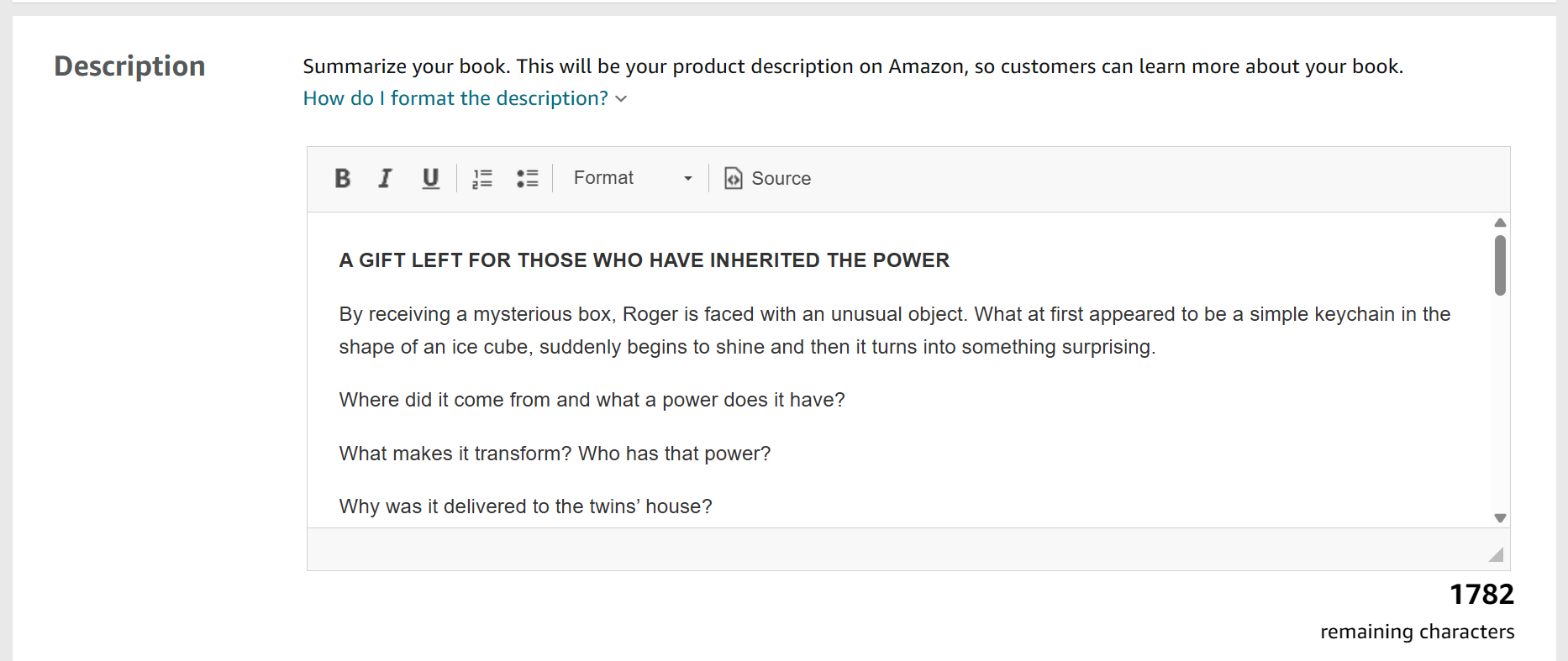
Add your book’s blurb. Use the formatting tools, such as bold and italics, to make it look good.
Publishing rights and audience
If it’s your own work, select I own the copyright and I hold the necessary publishing rights; if it’s in the public domain, the second option.
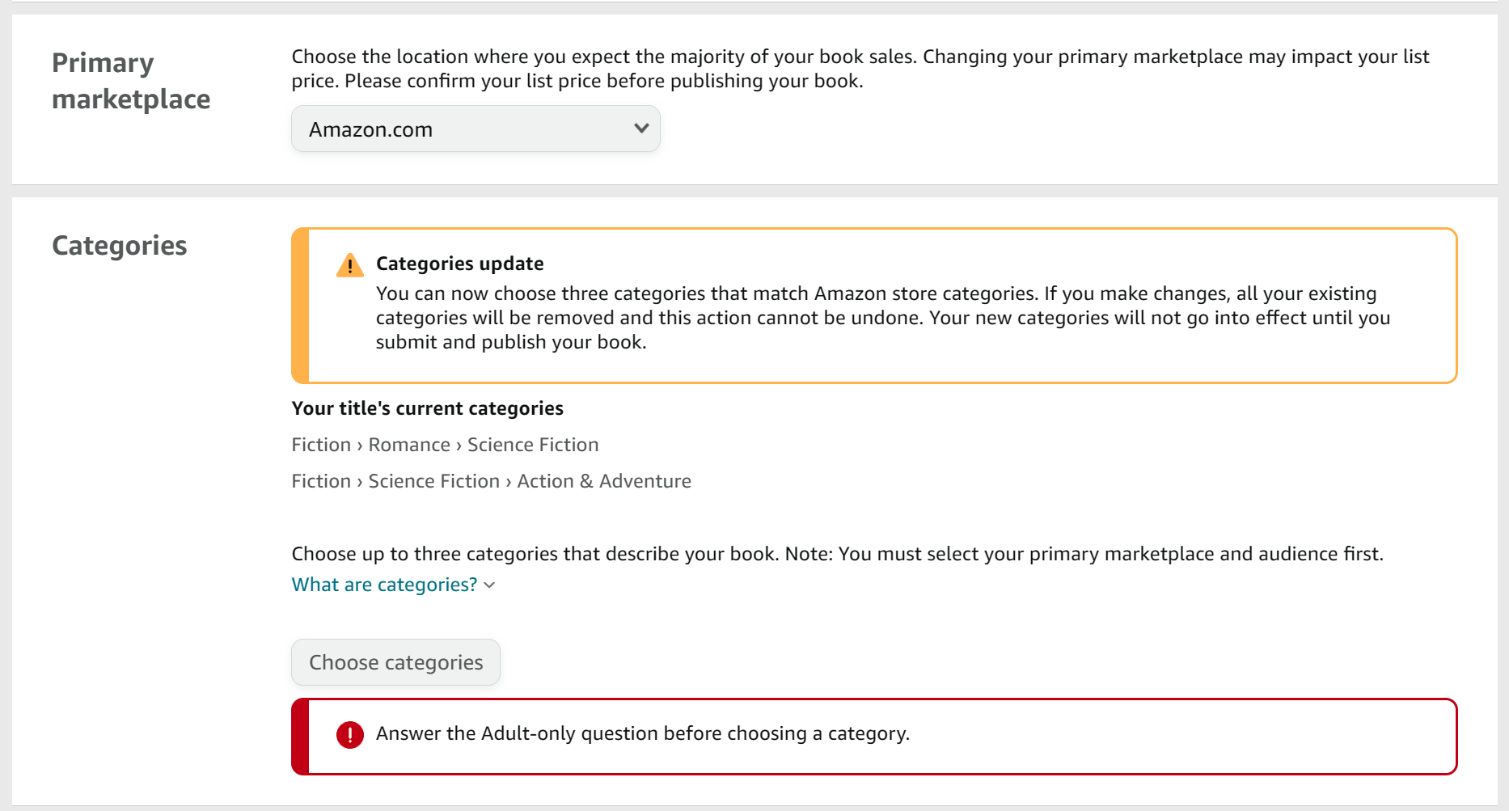
Under Primary Audience, answer whether the cover, the interior or the title contains sexually explicit images or language (you need to answer it before choosing categories). The reading age (optional) is only for children’s and young adult books. For other books, leave it blank.

Primary marketplace
The store where you expect most of your sales and the base currency used to convert your prices. Whichever you choose, the eBook is also available in Amazon’s other stores.
Categories and keywords
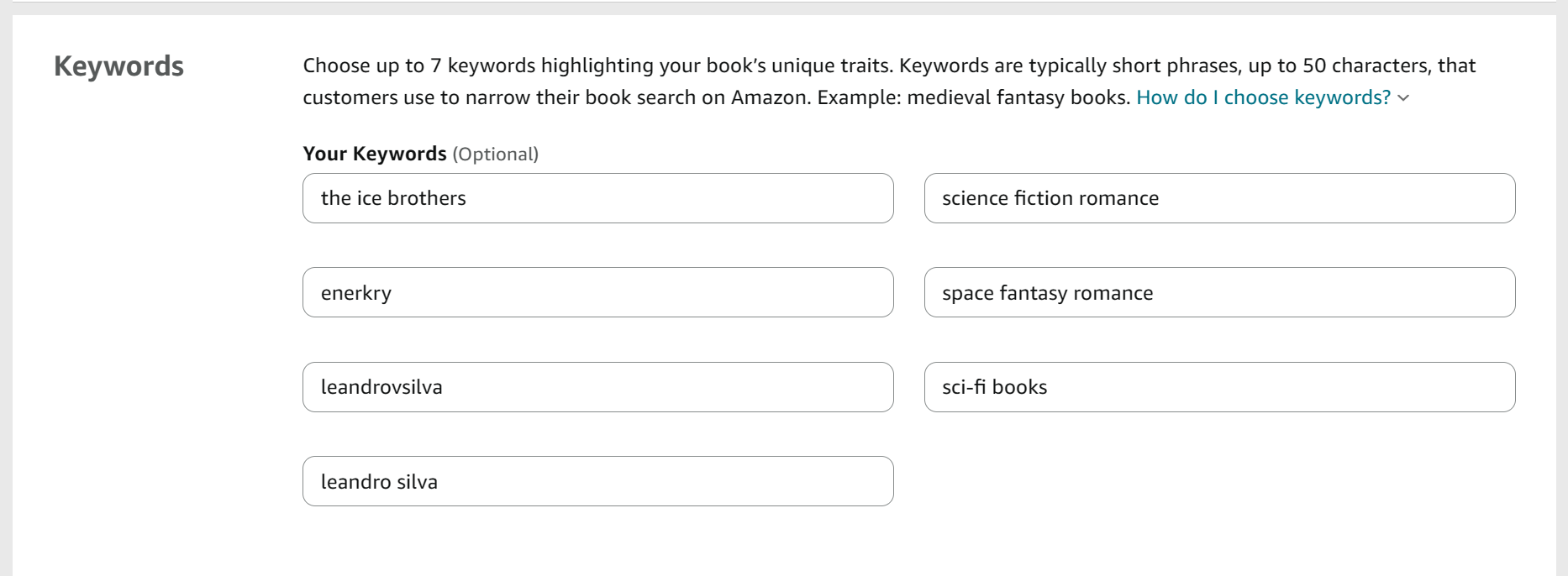
Choose up to three categories that describe the book and up to seven keywords for search. Be honest: no obscure categories just to rank easily, and no keywords unrelated to the book (such as celebrity names). If Amazon finds out, it may remove the book.
Publishing option
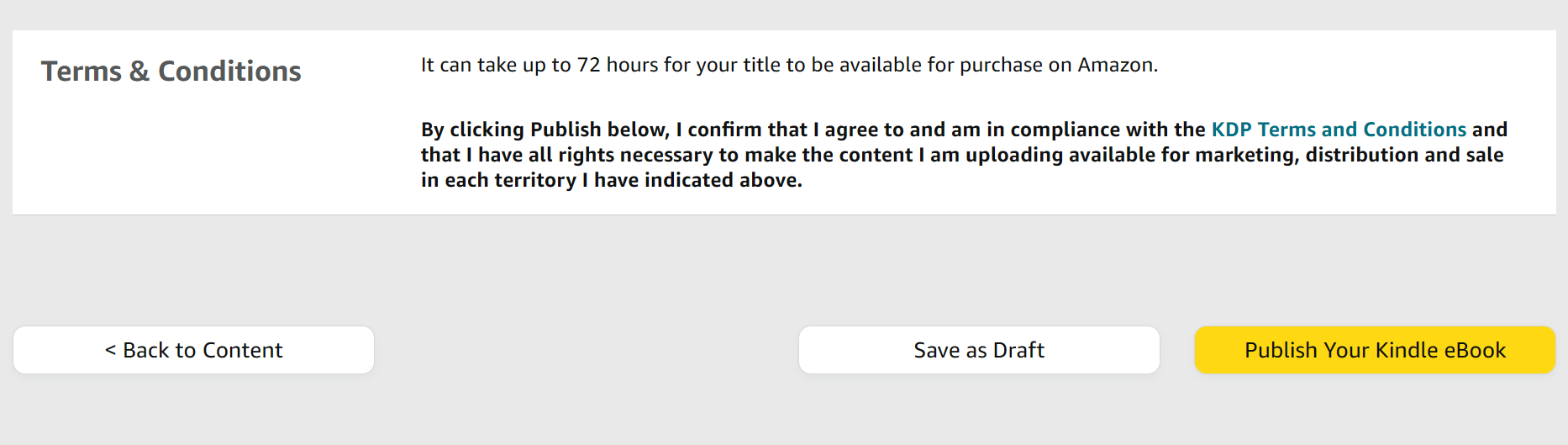
If you publish now, the book goes live within 72 hours. If you want a pre-order, select the second option and set the release date.
Step 2: Kindle eBook content
Manuscript
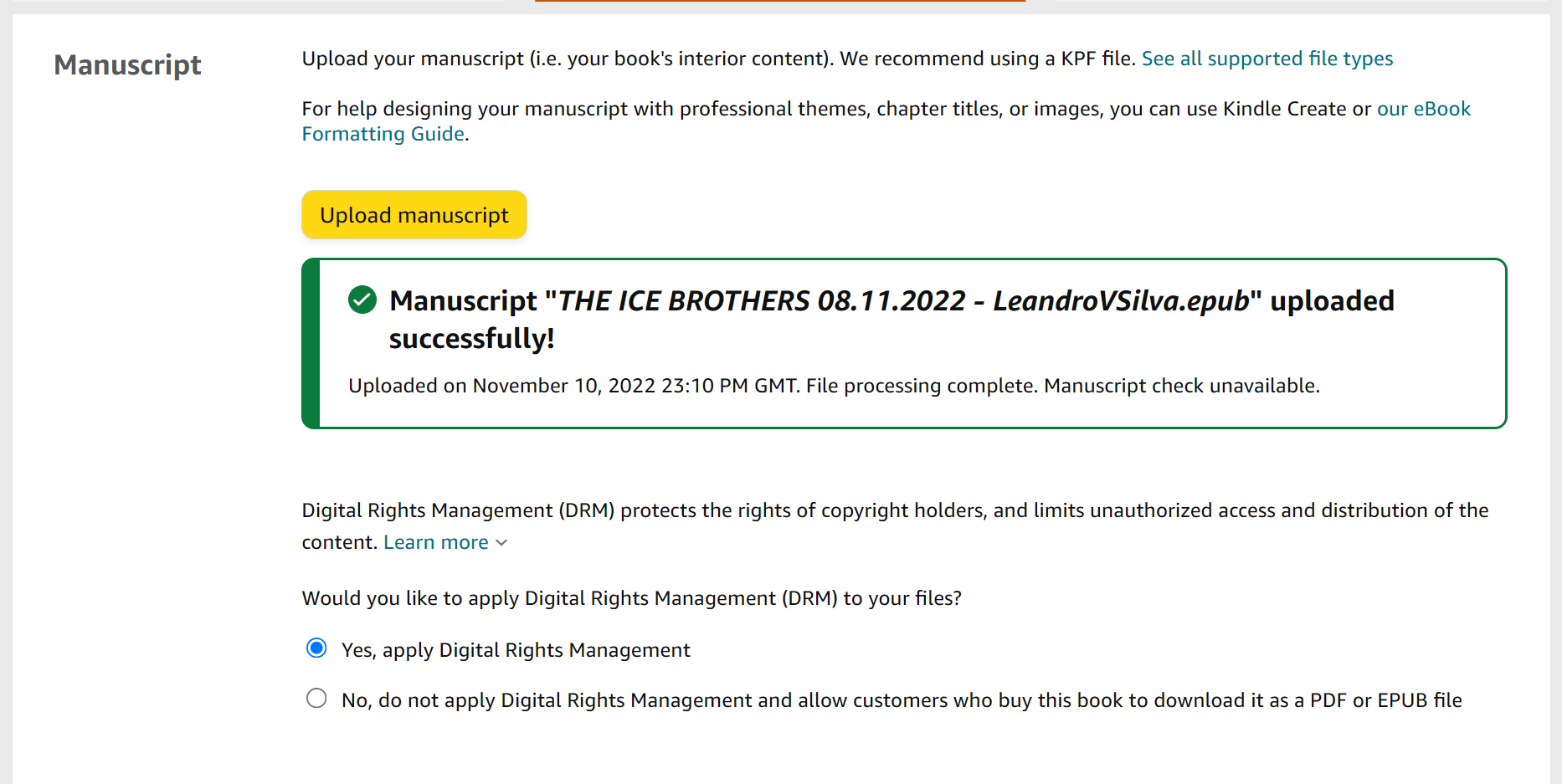
Click Upload manuscript. KDP recommends KPF (from Kindle Create); I usually use EPUB or KPF, but Word (DOCX) works too. After the upload you’ll see the upload confirmation and the spellcheck, which flags possible typos.
DRM: to protect the file or not
Right below comes DRM (Digital Rights Management), which protects the rights of copyright holders and limits unauthorized access to and distribution of the file.
- Yes, apply DRM: the eBook stays tied to the buyer’s Kindle account and can’t be copied as a file.
- Don’t apply it: KDP itself warns that buyers can download the book as a PDF or EPUB file. That makes sense if you want the book to circulate freely.
Once the book is published, the DRM setting can't be changed. For most authors, keeping DRM on is the best choice.
Cover
Use KDP’s Cover Creator or upload your own cover as a JPG or TIFF. Keep in mind that a cover made with Cover Creator can only be used on KDP.

AI-generated content
Amazon asks whether you used AI tools to create the text, images or translations in your book. Select the option that matches your work.

Kindle eBook preview
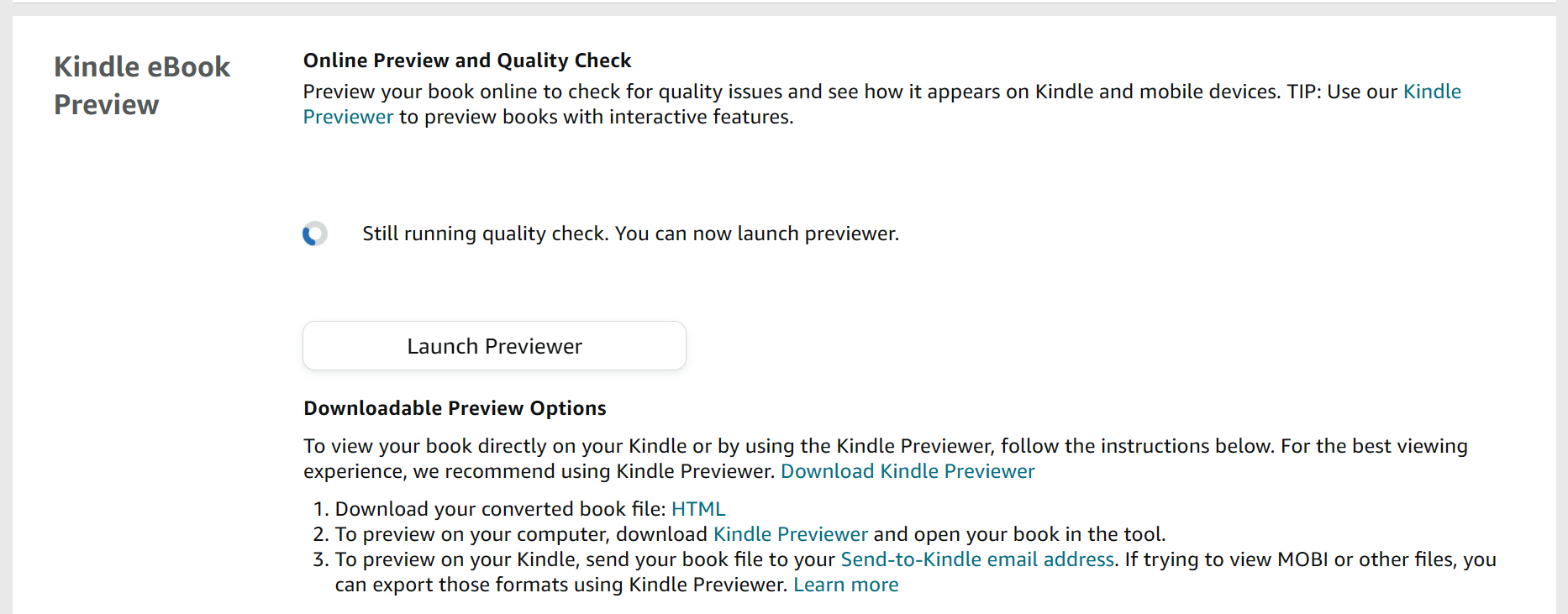
KDP has an online previewer (the Launch Previewer button) that shows how your book looks on Kindle, tablet and phone. You can also download the converted file (HTML) and open it in Kindle Previewer, or send it to your Kindle using your Send-to-Kindle email address.
I usually don’t use the online previewer, because I already do all my testing in Kindle Previewer, which is what KDP itself recommends for books with interactive features. What matters is checking the table of contents, images, chapter breaks and links before publishing.
Kindle eBook ISBN
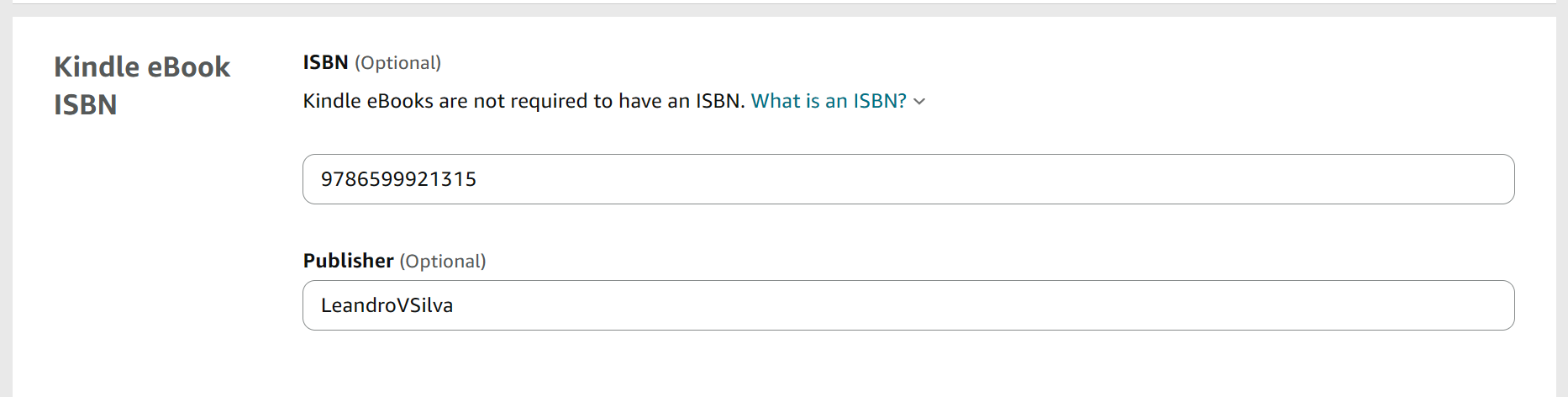
The ISBN is optional: Amazon assigns an ASIN, the identifier for every product in its store. If you have your own ISBN for the eBook (from your country’s ISBN agency, such as Bowker in the US), enter the number and the publisher (your name or your imprint).
Accessibility features
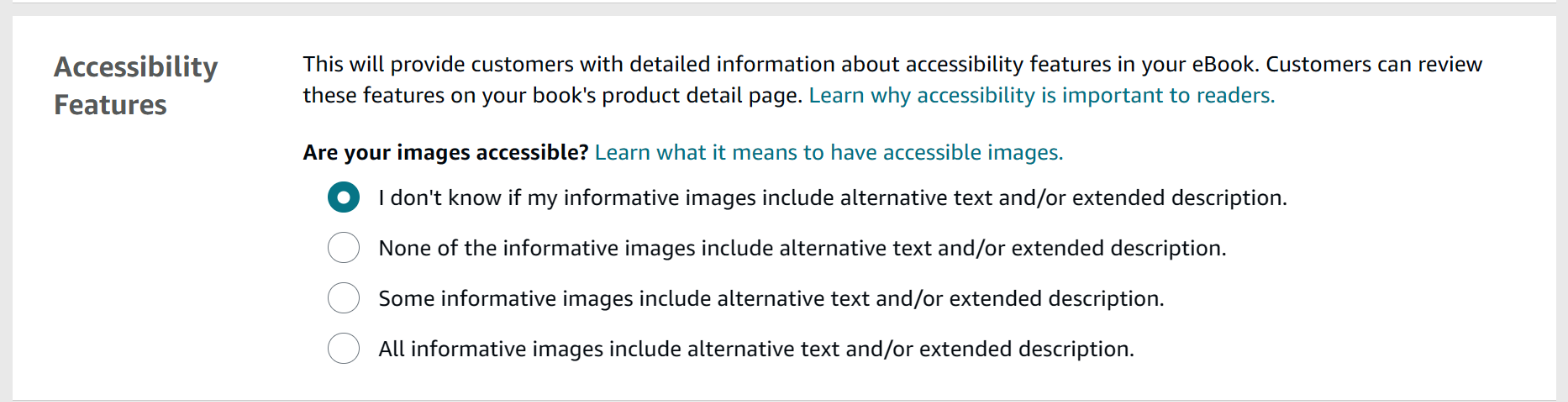
The last part of the content step asks whether the eBook’s informative images (maps, charts, tables saved as images, illustrations that explain something) include alternative text or an extended description. Your answer appears on the product page, along with the accessibility features, and helps screen reader users know what to expect from the book.
- Select the option that’s true: I don’t know, None, Some or All informative images include alternative text.
- In the EPUB, add alternative text (alt) to every image that carries information. Purely decorative images can have an empty alt.
- If the book is text only, with no informative images, choose the option that matches your file.
My advice: take care with the accessibility part and make your book complete. Many people read with a screen reader or by listening to the book read aloud, such as blind or low-vision readers, people with dyslexia, or those who simply prefer to listen. For them, a well-made eBook is the difference between being able to read your book or giving up on it.
- Alternative text on every informative image: describe what the image shows and what it means (on a map, the places; on a chart, the result). Then you can confidently select All.
- Headings and chapters with heading styles (Heading 1, Heading 2), not just a bigger font: screen readers use them to navigate and build the table of contents.
- A linked table of contents and a logical reading order, with no text inside images (screen readers can’t read text in an image).
- The right book language set in the file, so the voice pronounces the words correctly.
- Test by listening: turn on read-aloud on your Kindle or phone and listen to a passage with images.
On the product page, Amazon shows the book's accessibility features. An accessible eBook reaches more readers, gets fewer complaints and shows that you care about the people reading it. Few authors take the time to do this, and it makes your book more professional.
Step 3: Kindle eBook pricing
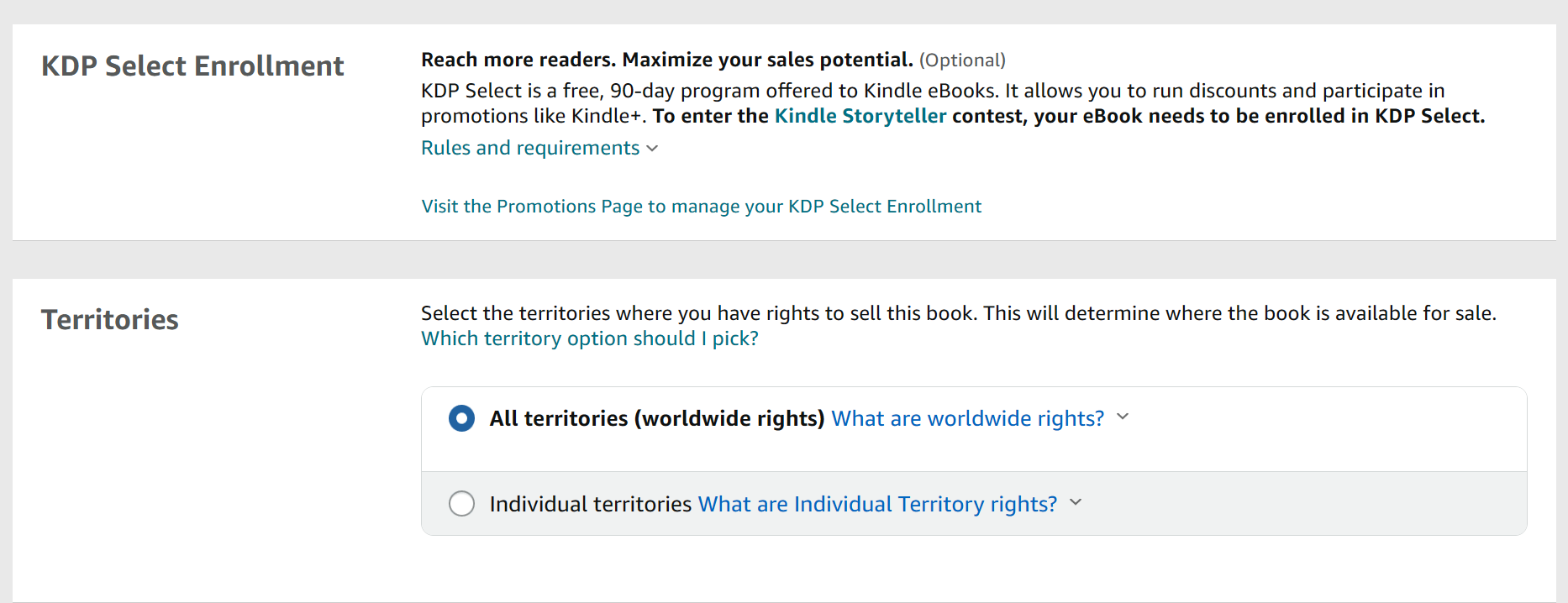
KDP Select
With KDP Select, your eBook joins Kindle+ (formerly Kindle Unlimited, renamed by Amazon in October 2026), you also earn for pages read and you can run promotions. In exchange, the eBook must be exclusive to Amazon.
Territories
Enable sales in all territories or choose them individually, depending on your strategy.
Royalties and price
| Plan | How it works |
|---|---|
| 70% | On Amazon.com, list price between $2.99 and $9.99, minus a delivery fee per MB |
| 70% and KDP Select | In Brazil, Japan, Mexico and India the 70% rate requires KDP Select; elsewhere it doesn't |
| 35% | Any allowed price, no delivery fee and no exclusivity |
Enter the price for your primary marketplace and KDP converts it to the other currencies (you can adjust each one). Watch the file size: on the 70% plan there is a delivery fee per megabyte, which reduces your royalty.

Then just click Publish Your Kindle eBook. Congratulations! It can take up to 72 hours for the book to appear in the stores, but it usually shows up the same day.
After publishing: free promotion, a sample for your website and a series page.
Frequently asked questions
How much does it cost to publish an eBook on Amazon?
Nothing. Amazon keeps a share of each sale, according to your royalty plan.
What's the best file format to upload?
EPUB or KPF (from Kindle Create). Word (DOCX) is also accepted for text-only books.
How long does it take for the eBook to go live?
Up to 72 hours, but usually the same day.
Tools and resources
Did you publish your eBook? Leave the link in the comments. And if you got stuck at any step, tell me where.