

HOW TO CREATE AND SET UP A SERIES ON KDP?

You may have noticed that, in the Amazon store, some books appear grouped together when they are part of a series.
If you have books or short stories published through KDP and those stories connect, you can bring the whole series together on a single page. With it you can sell the entire series in one click, and readers can easily find the information and the reading order of your work.
Path 1: while publishing the book
While setting up the book, after choosing the language and entering the title and subtitle, the Series section appears just below. Click Add to series.

A window opens with two options: Create series or Select series.

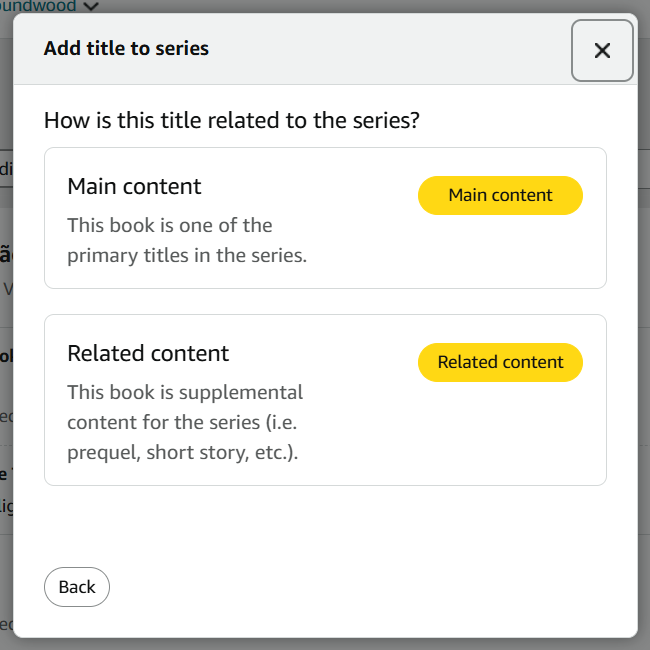
Main content or related content
- Main content: the main books of the series, in order.
- Related content: stories connected to the main work, such as a box set or collection, novella, prequel, short stories and spin-offs.

Set up the series page
- Select the language.
- Enter the series title.
- Choose the reading order: Ordered (in sequence) or Un-ordered (in any order).
- Check the preview with the order of the books.
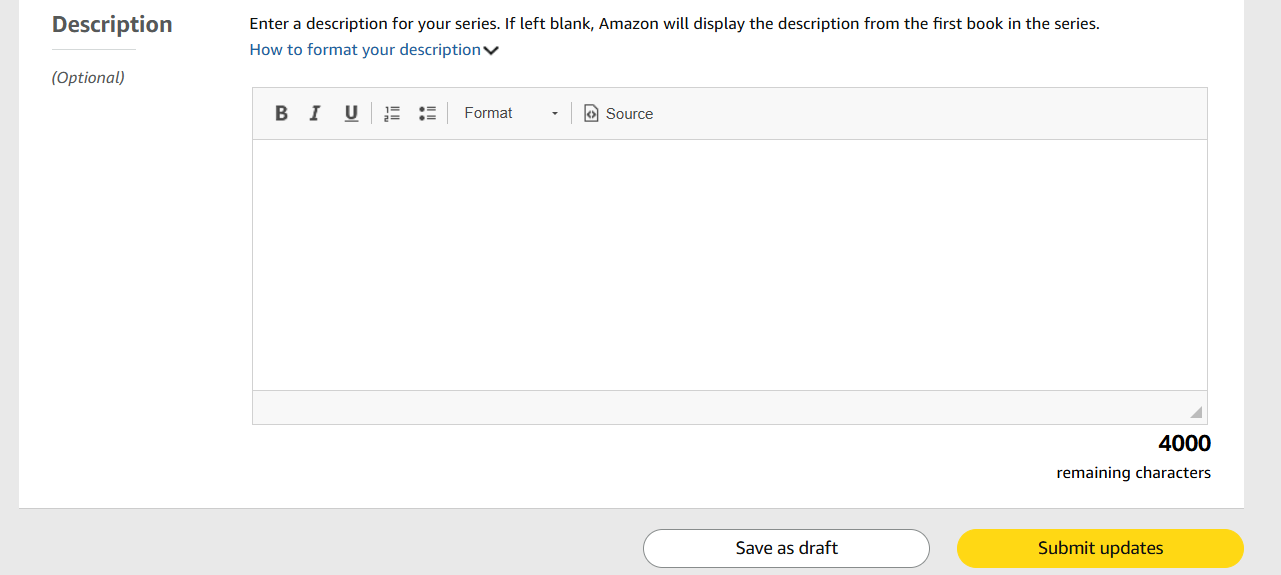
- Write the series description and submit it for publishing.

Under Select series you'll see the series you have already created. Choose the series and set the book's position and the other details.

Path 2: from the Bookshelf
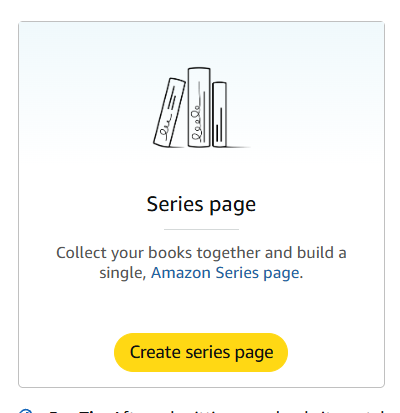
On the Bookshelf, click + Create new title or series and, next to the options for Kindle eBook, paperback and hardcover, choose Series page > Create series page. You’ll go to the Series Setup, and you just fill it in as I showed above.

Use this setup to draw more attention on the Amazon sales page and make it easier for readers to discover all of your literary work.
Writing a series? See how to structure your story to keep everything consistent across the volumes.
Frequently asked questions
Can a series include both eBooks and print books?
Yes. The series page can bring together eBooks and print books, each format in its own tab.
How long does the series take to show up?
After you submit it, Amazon reviews the series page, which usually takes a few days.
Can I change the order later?
Yes: on the series page, from your Bookshelf, you can edit the order, the description and the books.
Tools and resources
Is your story a series or a standalone book? Tell me in the comments.